Event Roster
The Event Roster section handles various exam types for assessing or supervising written and skills tests, including Skills Exam, Virtual Skills Exam, Written Exam, CBT Exam, and Oral Exam. Its usual process involves onboarding, auditing, recording attendance, and proctoring or evaluating candidates. Additionally, you can view historical and upcoming events scheduled.
Note:
- Before beginning the exam, ensure to check in and onboard the candidates.
- Use Event Roster (New Roster) to view scheduled upcoming events as well as past completed events.
- It is recommended to avoid using your phone (due to its small screen size) for check-in and completing your evaluation. Using a larger-screen device (tablet PC/iPad) will make reading easier and offer more convenient options.
Viewing the Event Roster
To view the Event Roster, follow these steps:
- Tap the Event Roster provided at the bottom. Or tap the Side Menu icon in the top-right corner of the screen and then select Event Roster from the navigation menu.
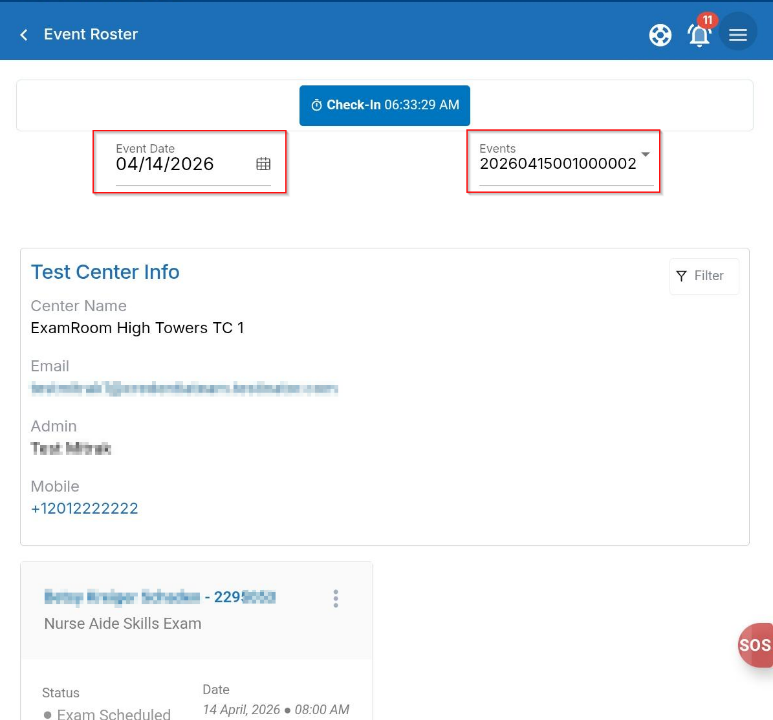
- Tap the Calendar icon and select the event date (today) from the calendar.
- Select the Event ID from the list of available events.
- The selected event is displayed. Tap Check In to start the event.
Note: The check-in button is available if you're using a tablet or a large-screen device. You won't see a check-in option on your phone, and you will only view the event details. - After making a selection, you can view the Test Center and Candidate details related to the event.
- Test Center Name: The Test Center information includes the name, email, admin name, and phone number.
- Candidate Info Box: All scheduled exam candidates are displayed, with each candidate's info box showing their name, exam type, status, date, time, form ID, and language.
- Add Notes: You can view and add internal reference notes for each candidate.
- Tap the More (Note) icon to open a pop-up where you can see existing or previously added notes.
- Tap the Add New+ button to add new notes.
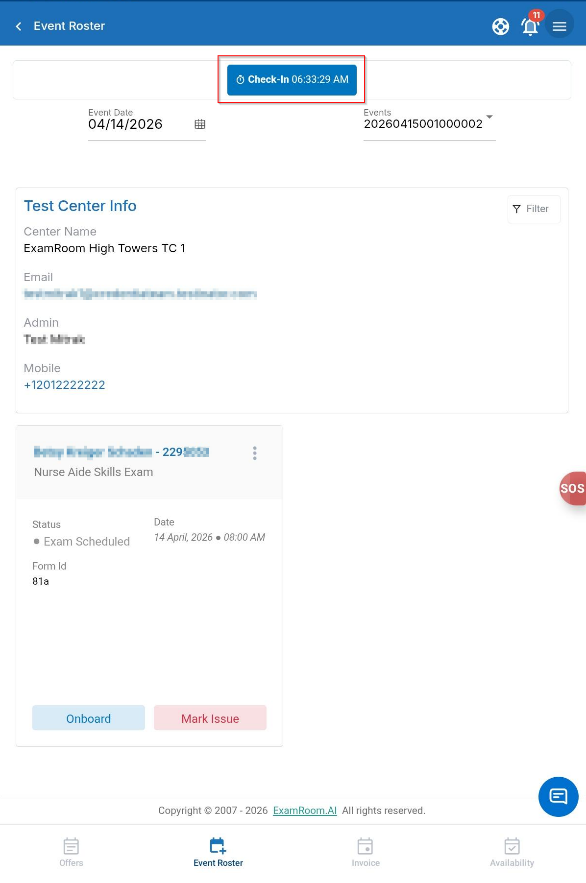
The Event Roster screen includes the following information:
- Test Center Information: Displays the test center name, administrator details, email, and contact number.
- Candidate Tiles: Displays the list of candidates scheduled for the event. Each tile includes details such as candidate name, exam type, appointment time, language, form ID, and exam status.
- Notes Option: Allows you to add or view internal reference notes for a candidate.
- Filter Option: Allows you to filter candidates by exam type, exam status, language, or scoring status.
Note: Ensure that you check in to the event before beginning onboarding or exam activities.
Marking an Issue
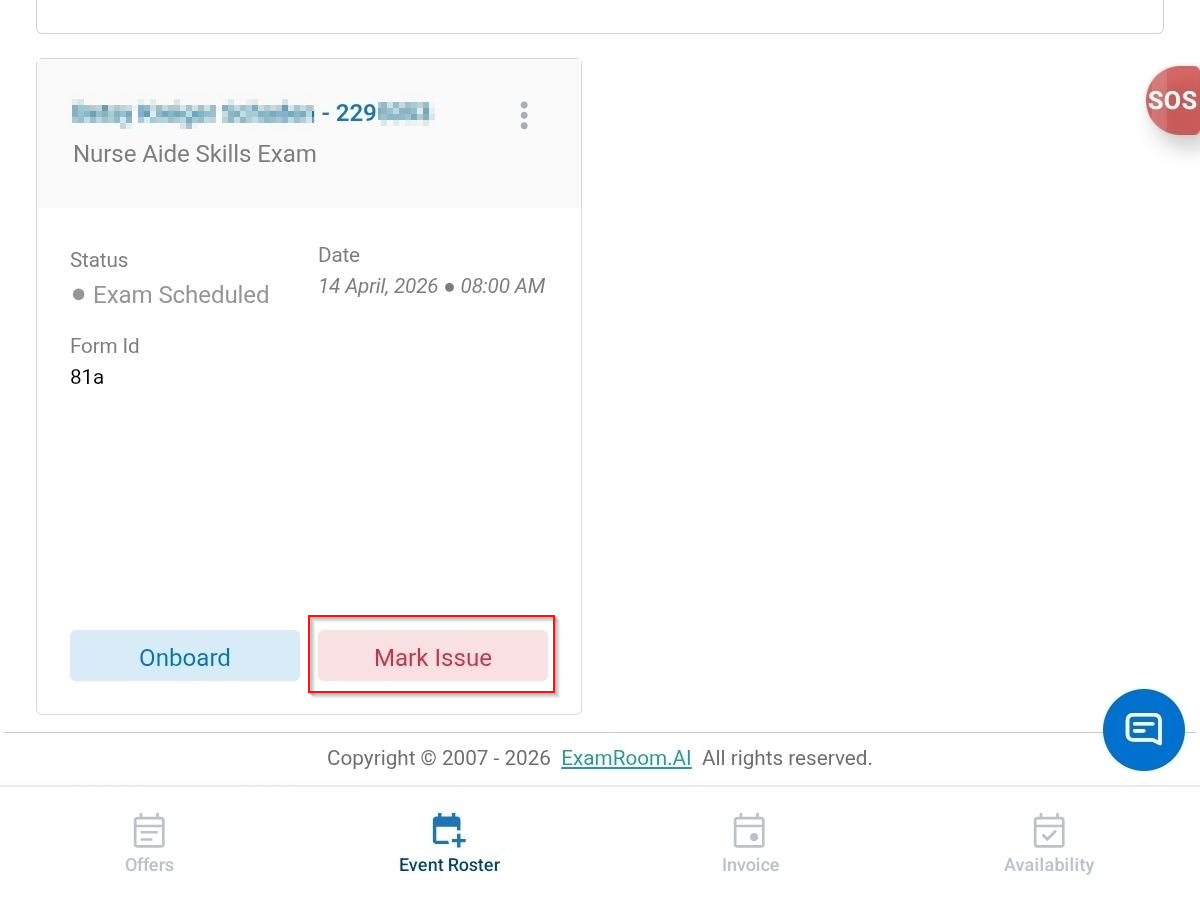
The Mark Issue button in the candidate tile lets you mark a candidate as absent or restrict them from taking an exam.
To mark the issue, follow these steps:
- On the Roster page, after you check in the event, select the candidate tile you wish to mark as an issue.
- Tap Mark Issue on the candidate tiles.
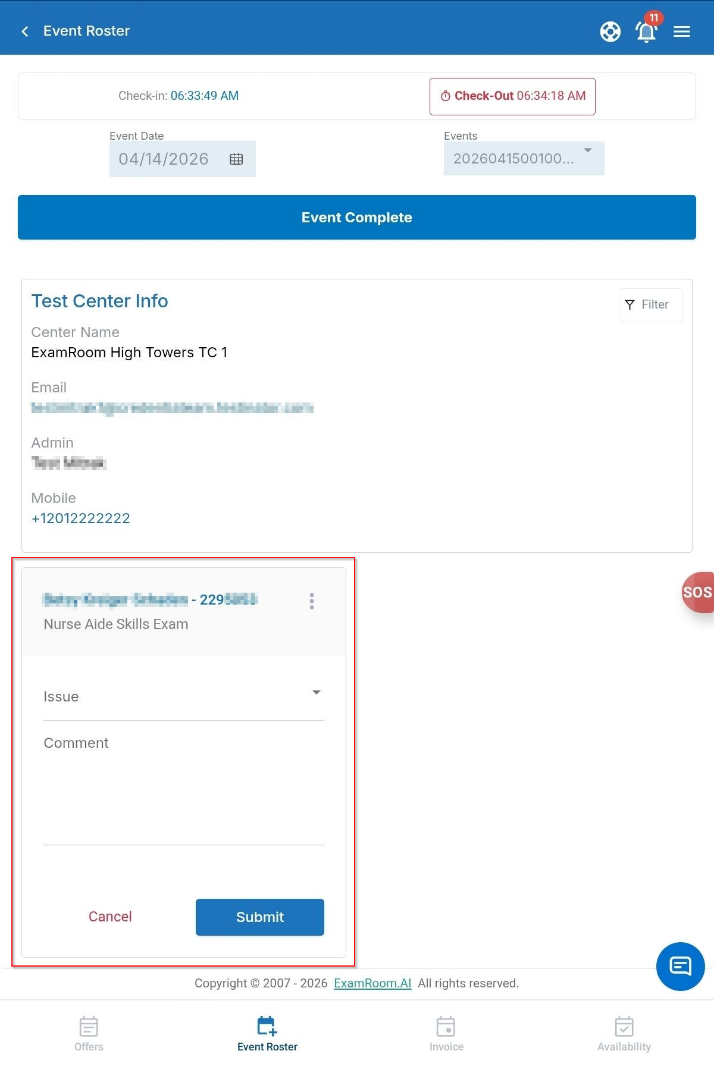
- Select an Issue from the dropdown list mentioned below:
- Absent
- Other facility issue
- Turn Away - Not Candidate's Fault
- Turn Away - Candidate Fault
- Wrong ID
- Relationship
- Language Issue
- Health
- Accommodation
- Before Exam Cheating
- Enter the Description in the Comment field.
- Tap Submit to save the issue. To discard, tap Cancel.
Onboarding the Candidate
To onboard the candidates, follow these steps:
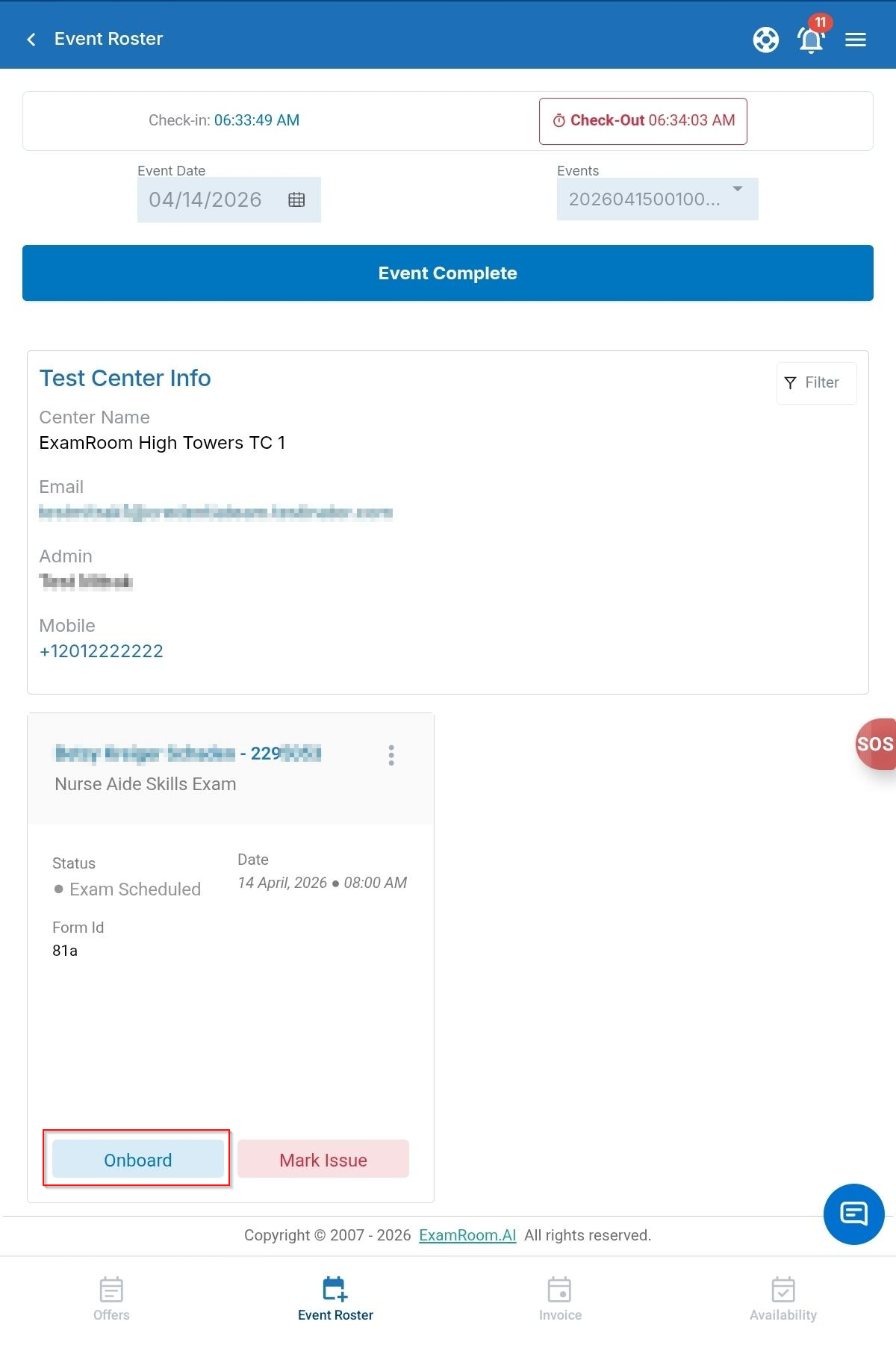
- On the Roster page, after checking in, choose the candidate tile you want to onboard. Then, tap Onboard to begin the onboarding process.
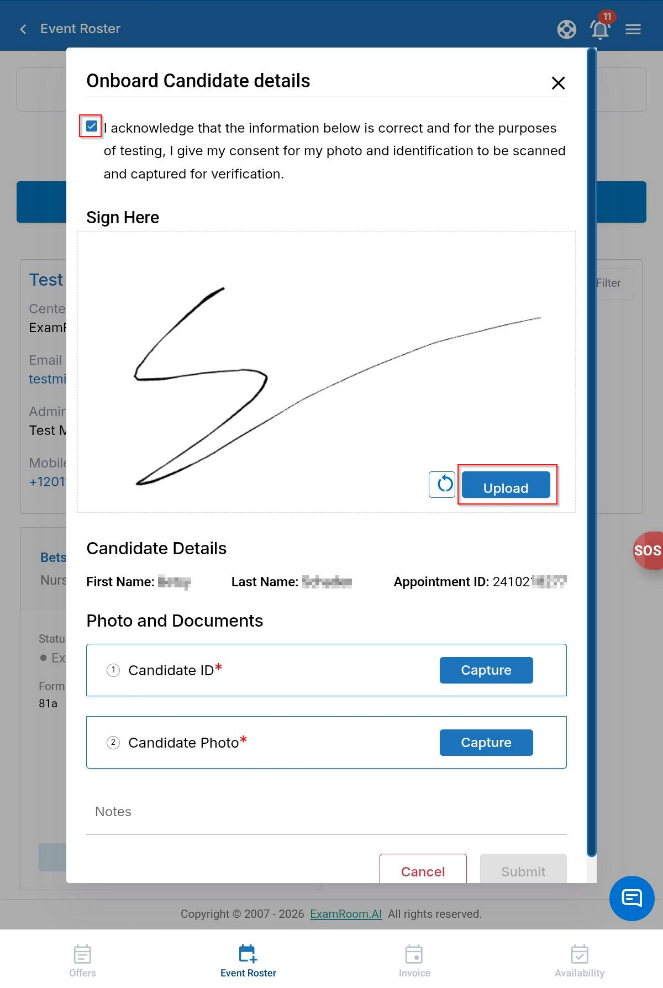
- A pop-up will appear, allowing you to verify and confirm the candidate’s First Name, Last Name, and Appointment ID listed under the candidate details before proceeding.
- After you verify, provide the tablet (device) to the candidate and ask the candidate to acknowledge and sign in the onboarding verification.
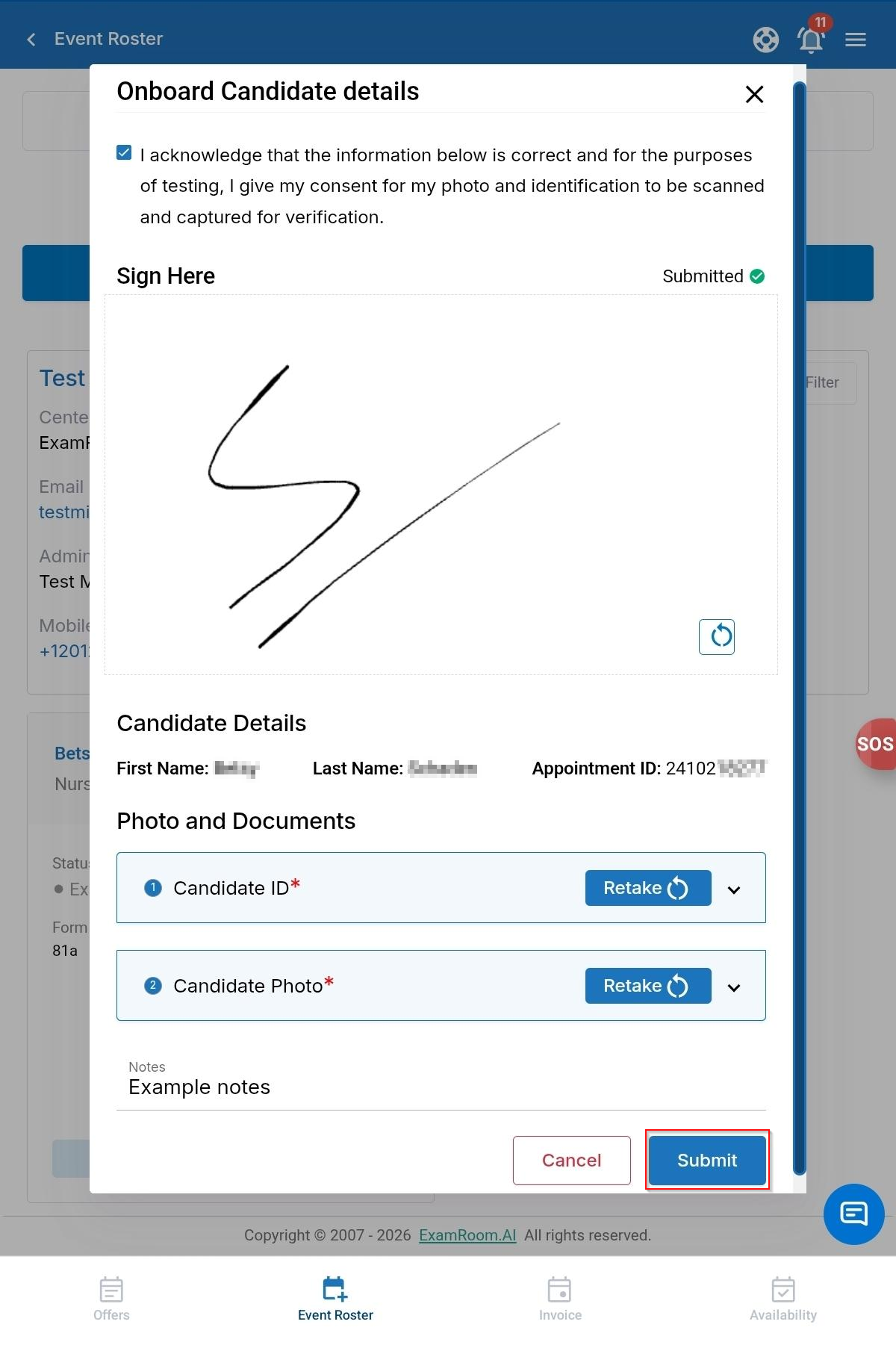
- The candidate needs to check the boxes corresponding to “I acknowledge that the information below is correct and for the purposes of testing, I give my consent for my photo and identification to be scanned and captured for verification.”
- The candidate should sign in the Signature section.
- Tap Upload to upload the candidate's signature to proceed. You will see a confirmation message (
) appear at the top right of the pop-up window.
- You may tap the clear
icon to retake the signature.
- You may tap the clear
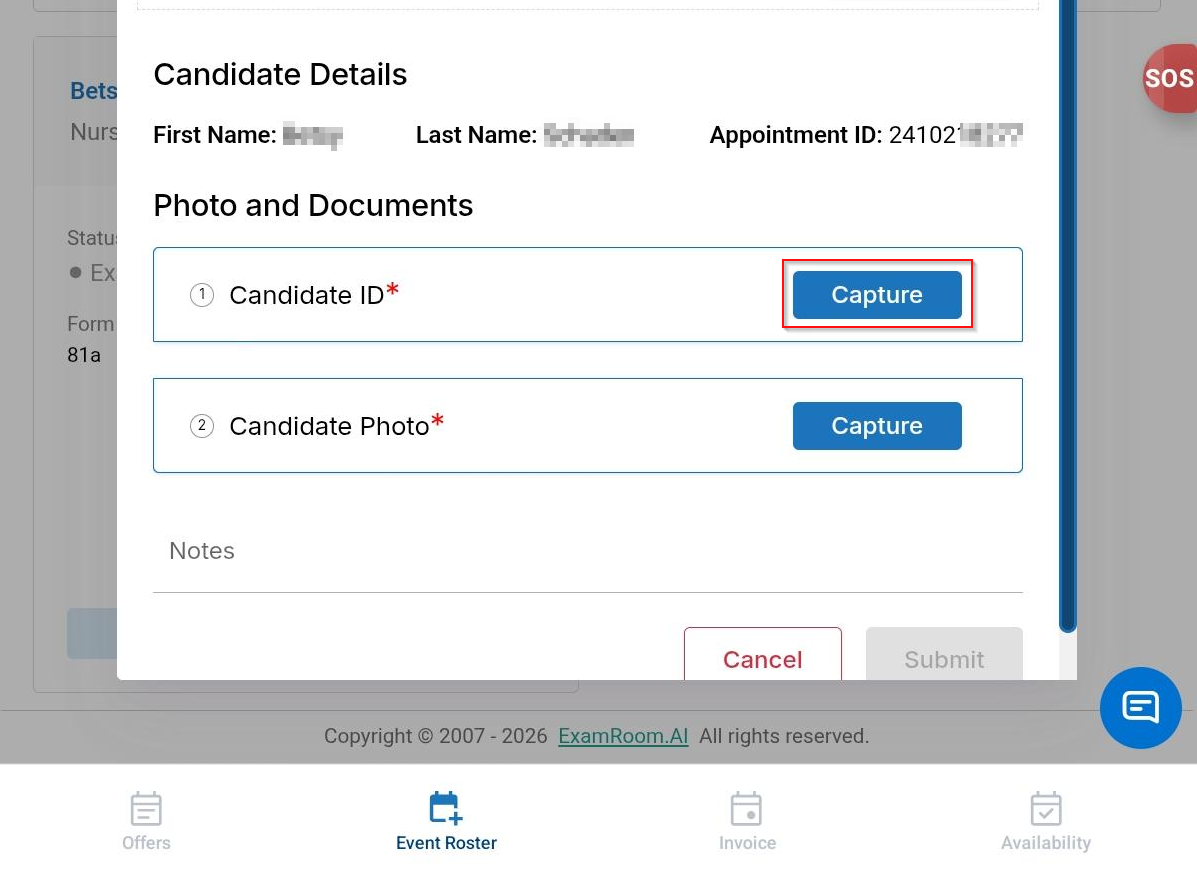
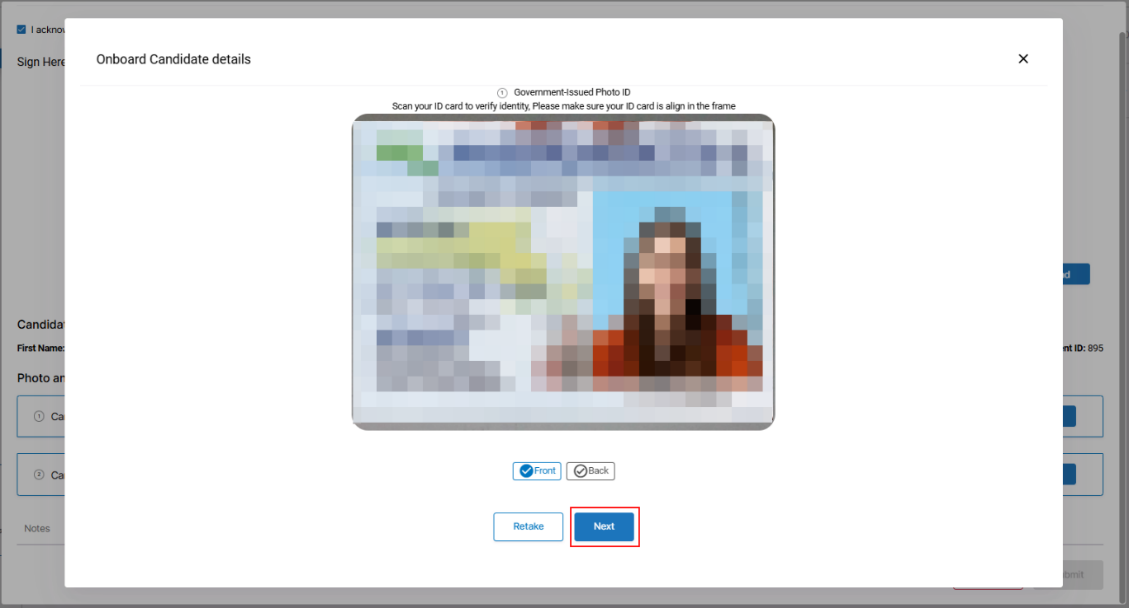
- You must capture the candidate ID and candidate photo to complete the onboarding process. Tap the Capture button in the Candidate ID field to photograph both the front and back of the ID card.
- Tap Allow to enable camera access for taking a picture.
- Show the Front side of the candidate’s ID in front of the camera and tap the Camera
icon to capture.
- You can tap the Flip
icon to flip between the rear and front cameras.
- You can tap the Flip
- Verify the captured front side of the candidate's ID before proceeding. You may use the Retake option. You must ensure that the ID is captured, aligned in the frame, and clear.
- Tap Next to proceed.
- Show the Back side of the candidate’s ID in front of the camera and then tap the Camera
icon to capture and proceed with the above capture steps to verify the ID.
- Tap the Capture button in the Candidate Photo field to take a picture of the candidate.
- Tap the Camera icon
and ensure the candidate's photograph is properly aligned in portrait orientation.
- Verify the captured photo of the candidate and tap the Submit button.
- Tap the Camera icon
- If you are onboarding a candidate for the written exam, follow the above steps, and for the Assign Booklet options, refer to Onboarding the Candidate for the Written Exam.
- Add Notes, if any, and tap Submit to complete the onboarding.
Note: The Notes section is used to input the information for the second ID, if required.
Skill Evaluation
Once you complete the onboarding process, you can start proctoring the candidates.
To start proctoring, follow these steps:
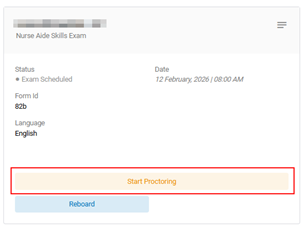
- Tap the Start Proctoring option provided in the candidate info box.
- A Skills Evaluation Verbatim PDF is displayed for you to read and complete the evaluation verbatim. After completing, tap the close
icon in the top-right to continue.
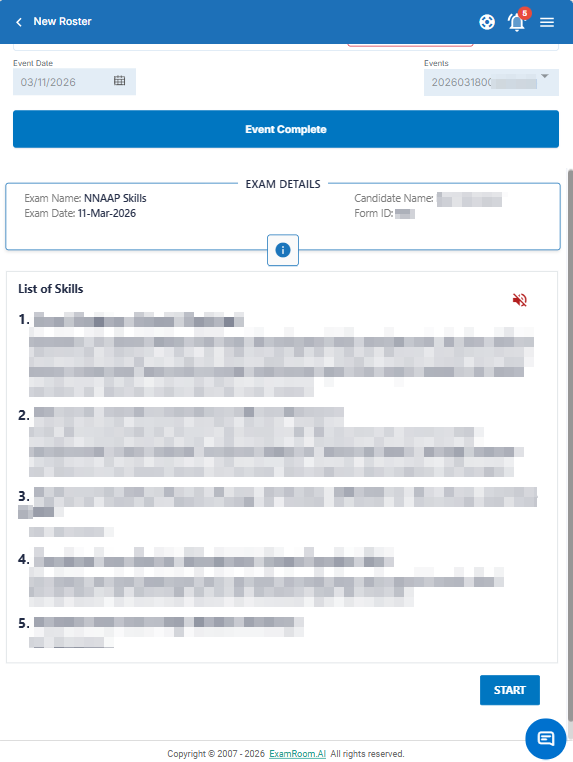
- A new window displays the Exam Details and the list of skills for the candidate. Tap the Start button to begin skills evaluation.
- Tap the Information
icon to view the Language and the Accommodation requested by the candidate.
- Note: Accommodation details are available for the candidates who requested accommodation during the registration process.
- Use the Speak
icon at the right side of the page to let the system read out the list of skills.
- Tap Start to start proctoring the exam.
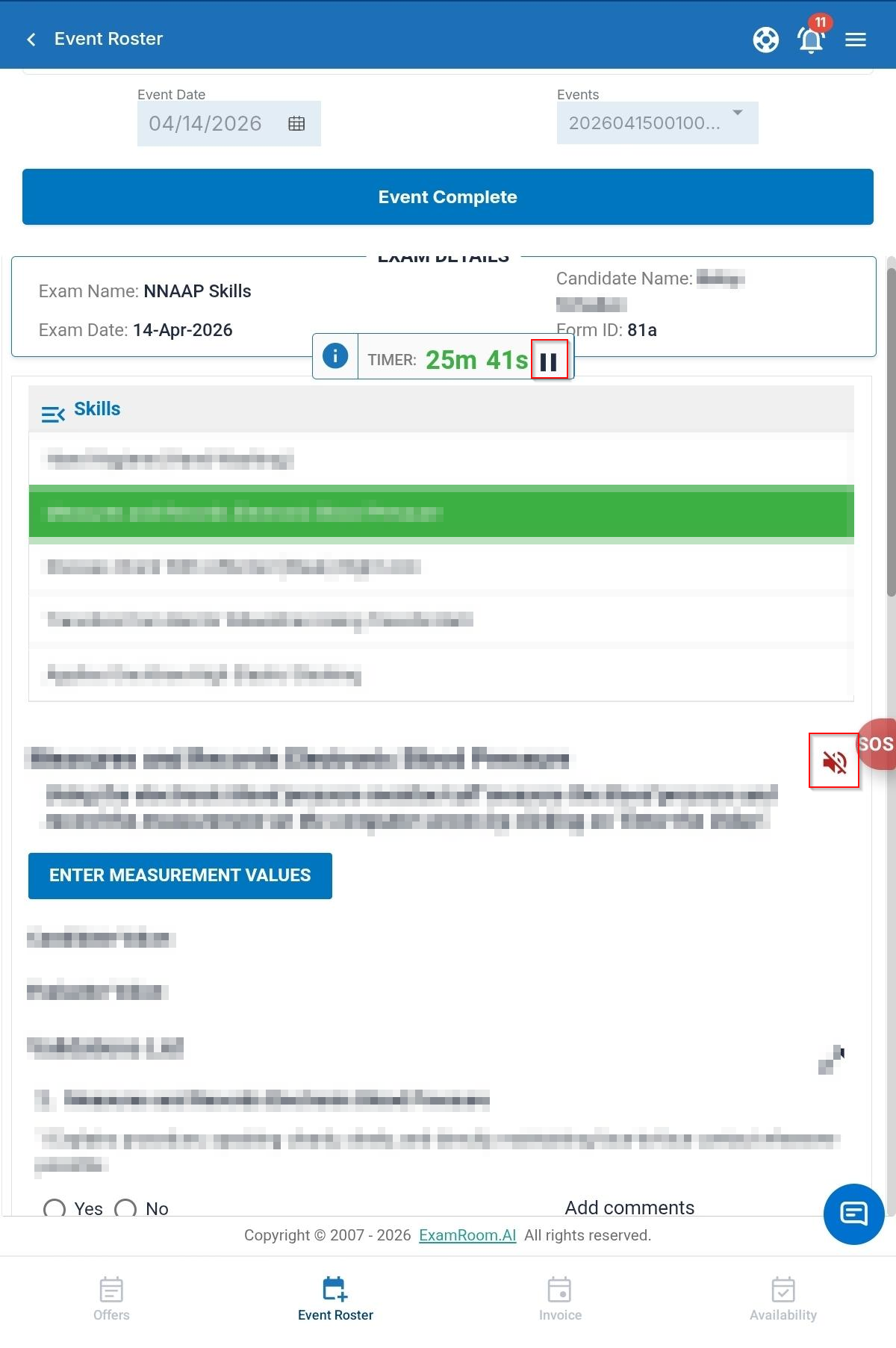
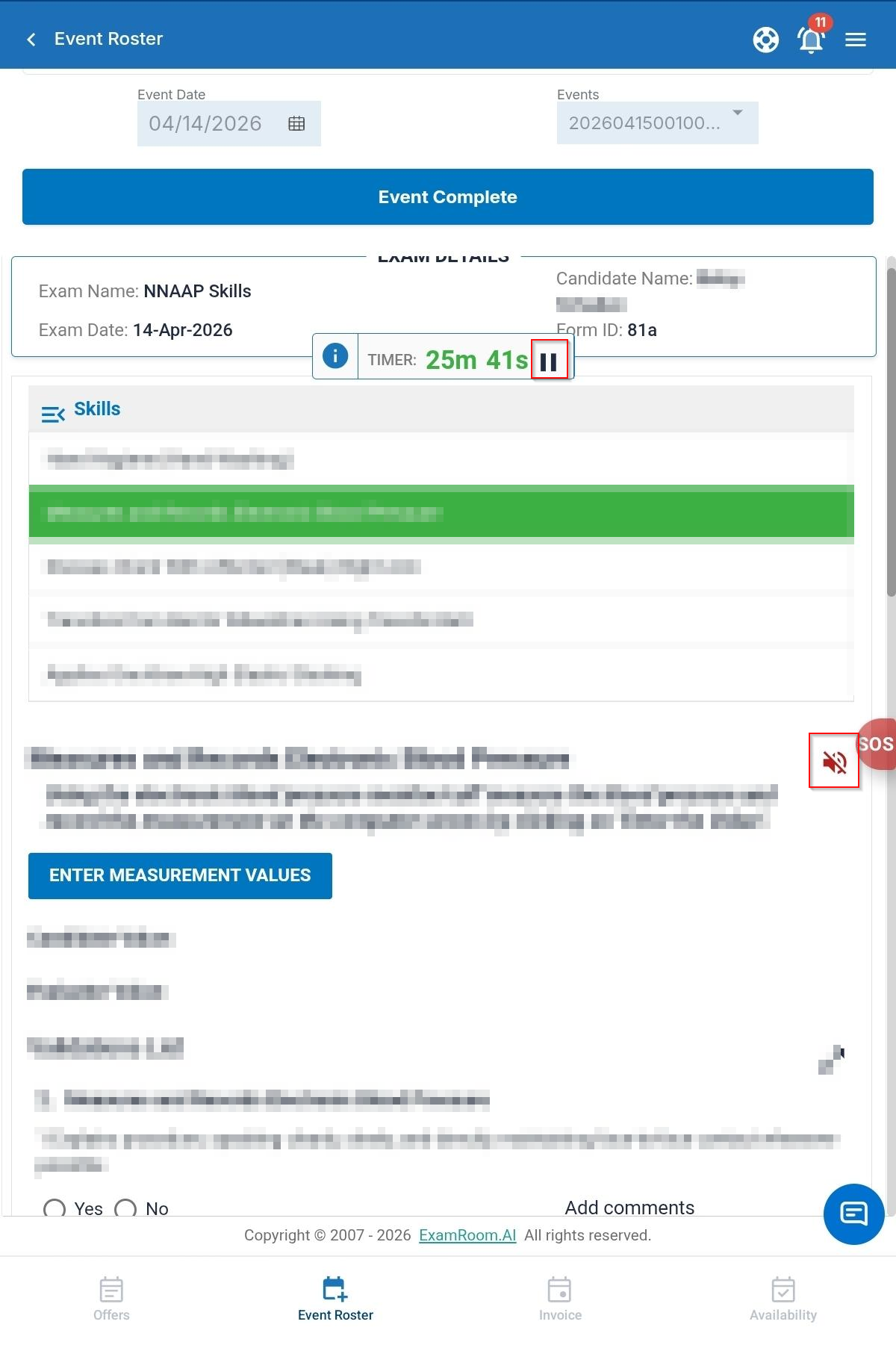
- The Proctoring window displays the list of skills to be performed on the left and the corresponding instructions for each skill on the right. Candidates demonstrate five (5) skills, and they have 30 minutes to complete the task. The following provides the instructions and options available on the Validation Page:
- Above the validation list, you'll find the skills and reminder instructions the candidate must follow. You can also refer to this for your guidance.
- Use the speaker
icon to read out the list of skills again for the candidate.
- Use the speaker
- Instruct the candidates about the exam duration before starting the exam.
- You can pause and resume the exam by tapping the Pause and Resume button at the top of the window.
- Critical steps are star-marked and highlighted in bold.
- Above the validation list, you'll find the skills and reminder instructions the candidate must follow. You can also refer to this for your guidance.
- Once candidates start the test, you should validate each step by updating the Validation List.
- To update the Validation List, select Yes or No for each corresponding step:
- Select Yes if the candidate performs the step correctly.
- Select No if the candidate does not perform the steps or performs them incorrectly.
- If you select No, tap Choose an Incident, and select the options from the dropdown.
- Did not perform the step.
- Step performed incorrectly.
- In the Add comments field, enter your comments about the incident.
- Tap Save to save the details.
Note: If you have selected the “No” option, selecting the incident and adding comments are mandatory; you must provide the incident details to proceed.
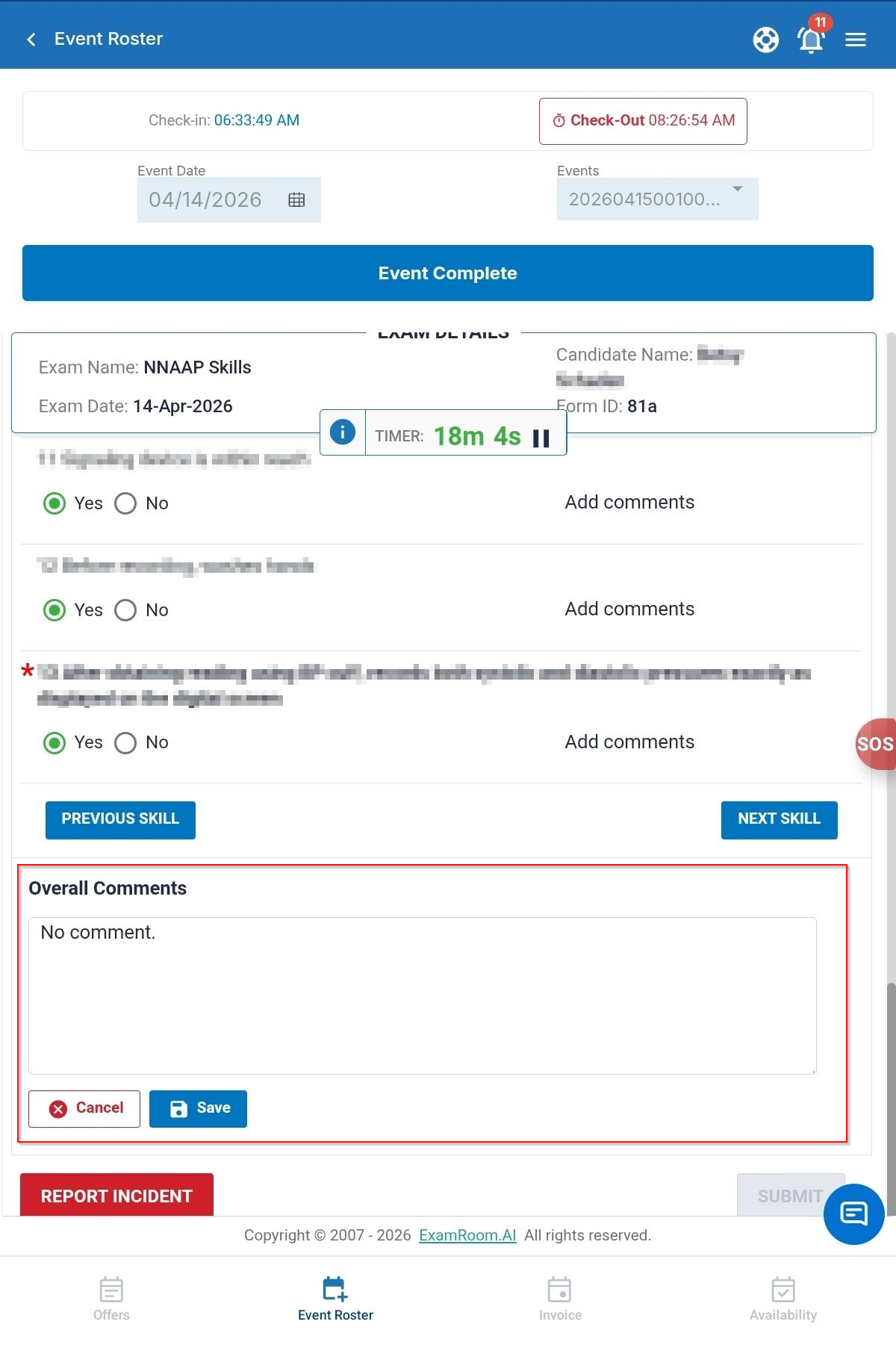
- Enter Overall Comments for the validated skill, if required, and tap Save to save the comments.
- After validating the first skill, tap Next Skill to proceed to the next page and continue with the remaining skills. You can validate all skills as described in the instructions above.
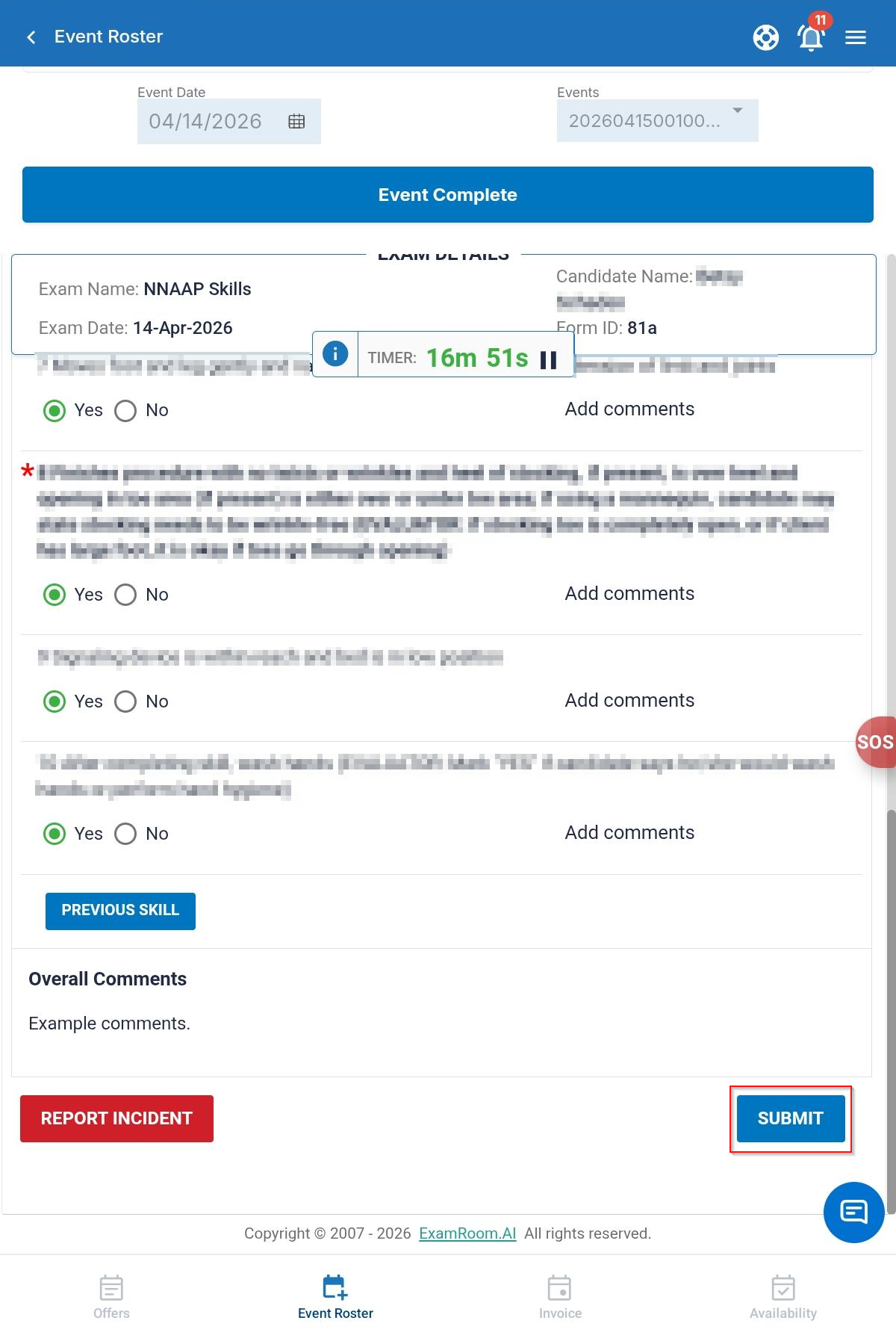
- Once the candidate completes all five (5) skills, tap Submit.
- After submitting the test, you will be redirected to the main Roster Page.
- In the Roster page, select the next candidate from the roster.
- Tap Start Proctoring and follow the same steps for the next candidate.
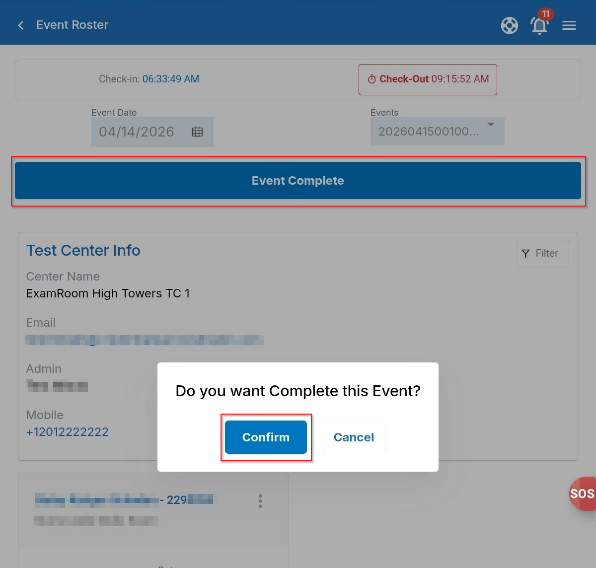
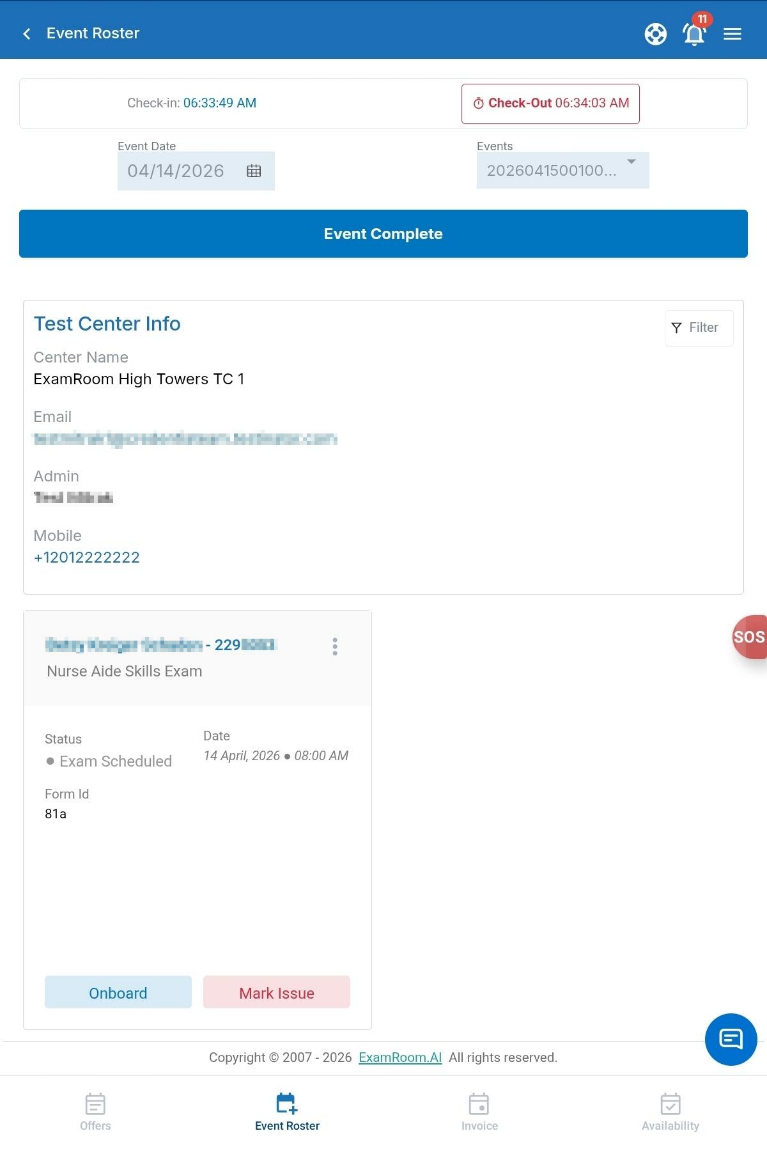
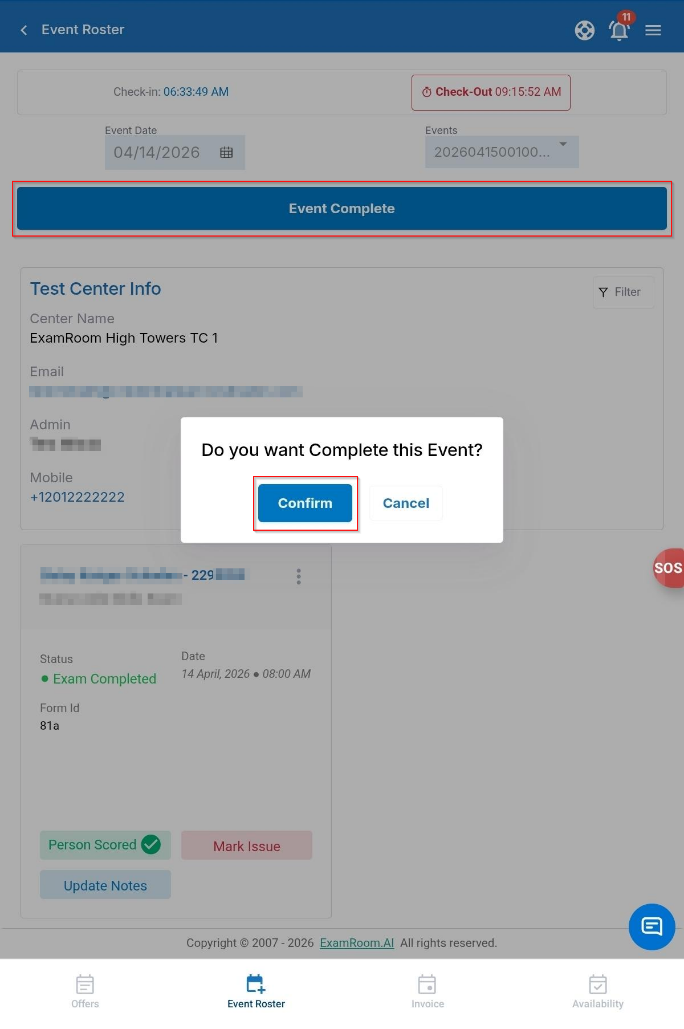
- Once you have completed skills evaluation for all the listed candidates for this event, tap Event Complete and Confirm to close the event.
Note:
- Verify you have completed validation for all the scheduled candidates and updated the Mark Issue for candidates who have not attended the event, to complete the event.
- Verify the checkmark in the candidate tile confirms that the candidate has scored successfully in the skill exam.
Enter Measurement Value
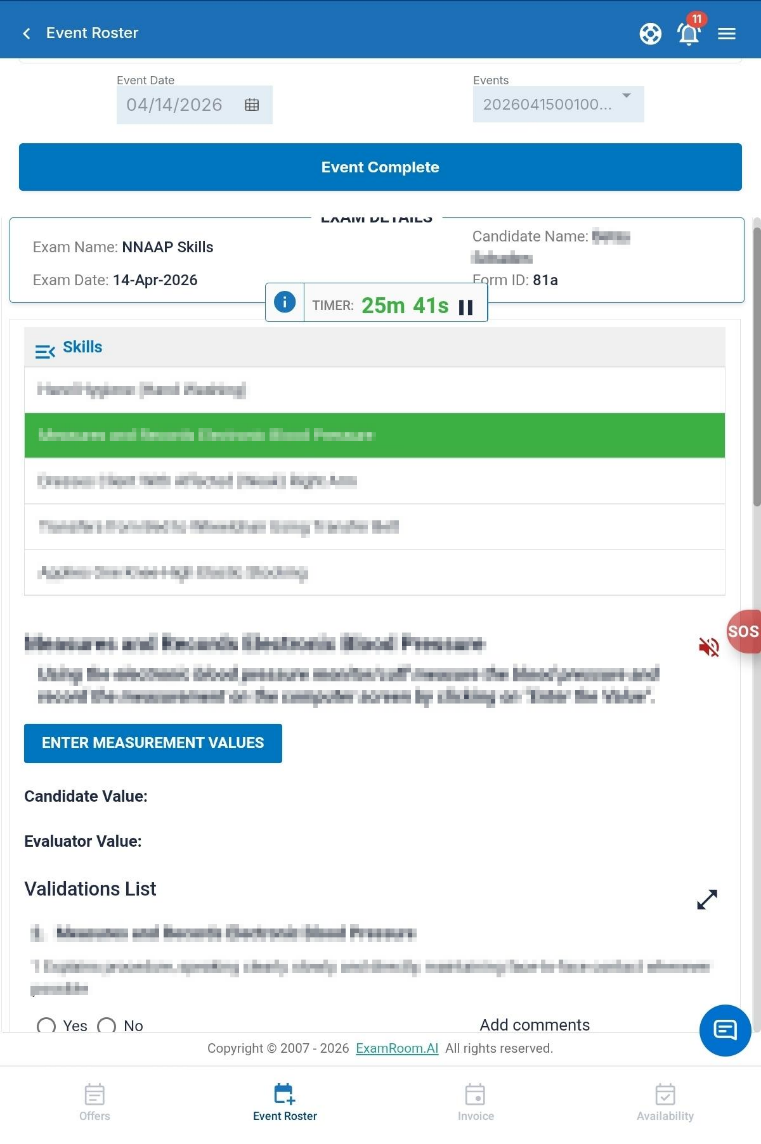
Some skills may require the candidate to measure and record the values, such as the client’s weight. The Enter Measurement Value option allows for recording those values.
Note: Check the question instructions to see whether you need to perform any task on your part.
To record the measurement value in the system, follow these steps:
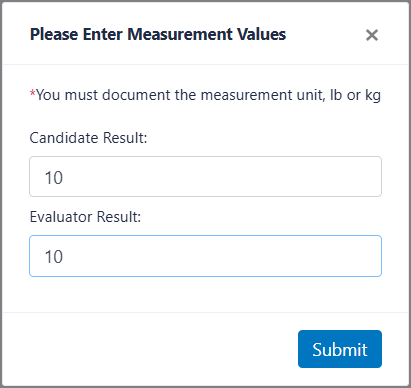
- Tap the Enter Measurement Value button.
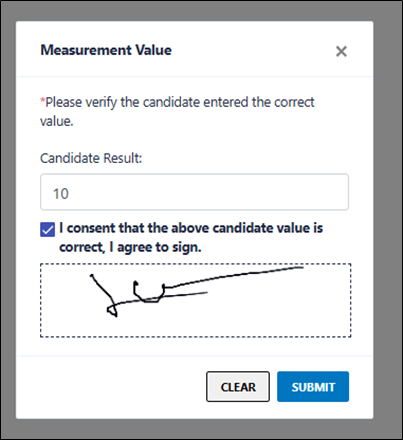
- Provide the tablet to the candidates and instruct them to capture the measurement values by following the steps below:
- Enter the values in the Candidate Result field and Tap Submit.
- After submitting the values, select the check box and enter the signature in the Signature Here field.
- Tap Submit to save the values.
Note: Use the Clear option to clear the Signature Here field.
- Once candidate values are submitted, receive the tablet from the candidate and record your values in the Evaluator Result field.
- Tap Submit.
- Once you Submit the values, the captured value will be displayed in the Candidate Value and the Evaluator Value, respectively.
Note:- Use the Refresh
icon to recapture the measurement values. Follow the above steps to recapture the measurement values.
- Recapturing the values is allowed only when the candidate performs that specific skill. If the candidate moves to Next Skill, the Refresh button
will be disabled.
- Use the Refresh
Report Incident
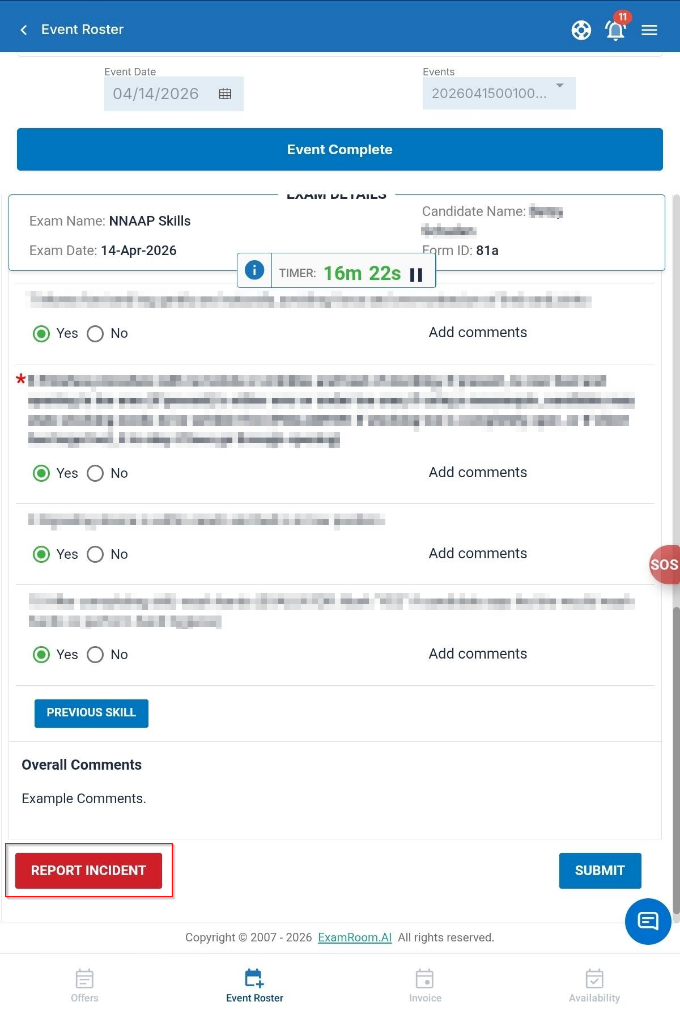
During proctoring, if you need to stop the test due to safety issues, the candidate is ill, walks away, cheating, or there is a facility issue. You have the Report Incident option to stop the test.
To apply the Report Incident, follow these steps:
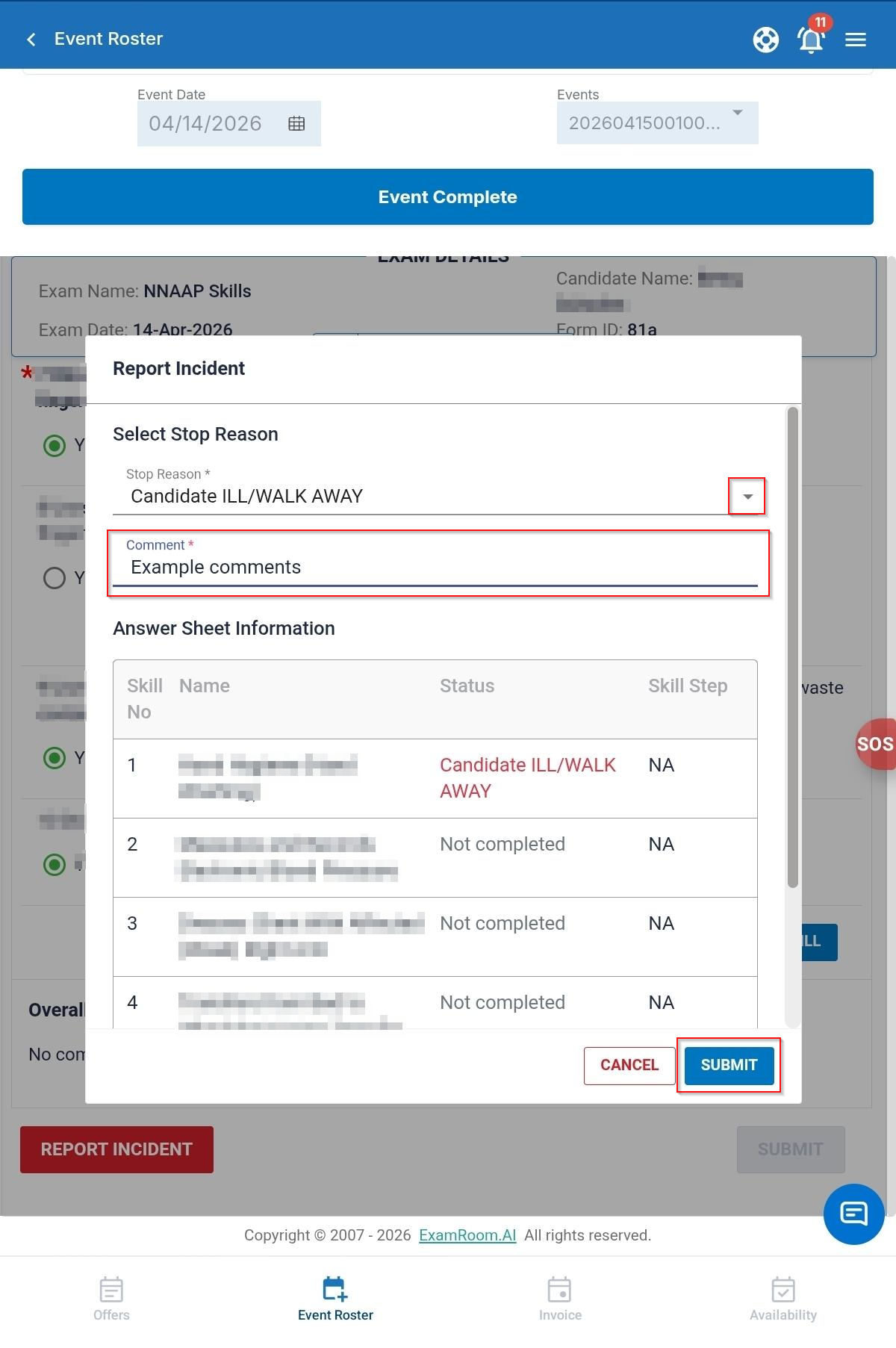
- Tap Report Incident. A pop-up window appears to report the required incident.
- Select a reason from the Report Incident Reason dropdown menu. Your options include Candidate ILL/WALK AWAY, Cheating, and Facility Issue.
- In the report incident section, the failed step is captured based on where you initiated this option.
- Enter your comments for the incident in the Comments field.
- Tap the Submit button to submit the Report Incident.
Skill Day Orientation
The Skill Day Orientation is conducted to provide an overview of Credentia, its process, and basic knowledge of the skill test. Generally, Credentia Operations schedules the skills day orientation event and shares it with new joiners (CNAs newly joined to evaluate candidates' skills) and Auditors.
If you attend the skill day orientation event as an auditor, refer to the steps below:
- Navigate to the Event Roster Page, select the Event Date from the calendar icon, and tap the required Event ID from the dropdown. The Roster is displayed as shown below.
- This page displays the Test Center Name, Admin Name, Event Date, Event ID, and Check-In button. Tap Check-In to check in to the event and view its details.
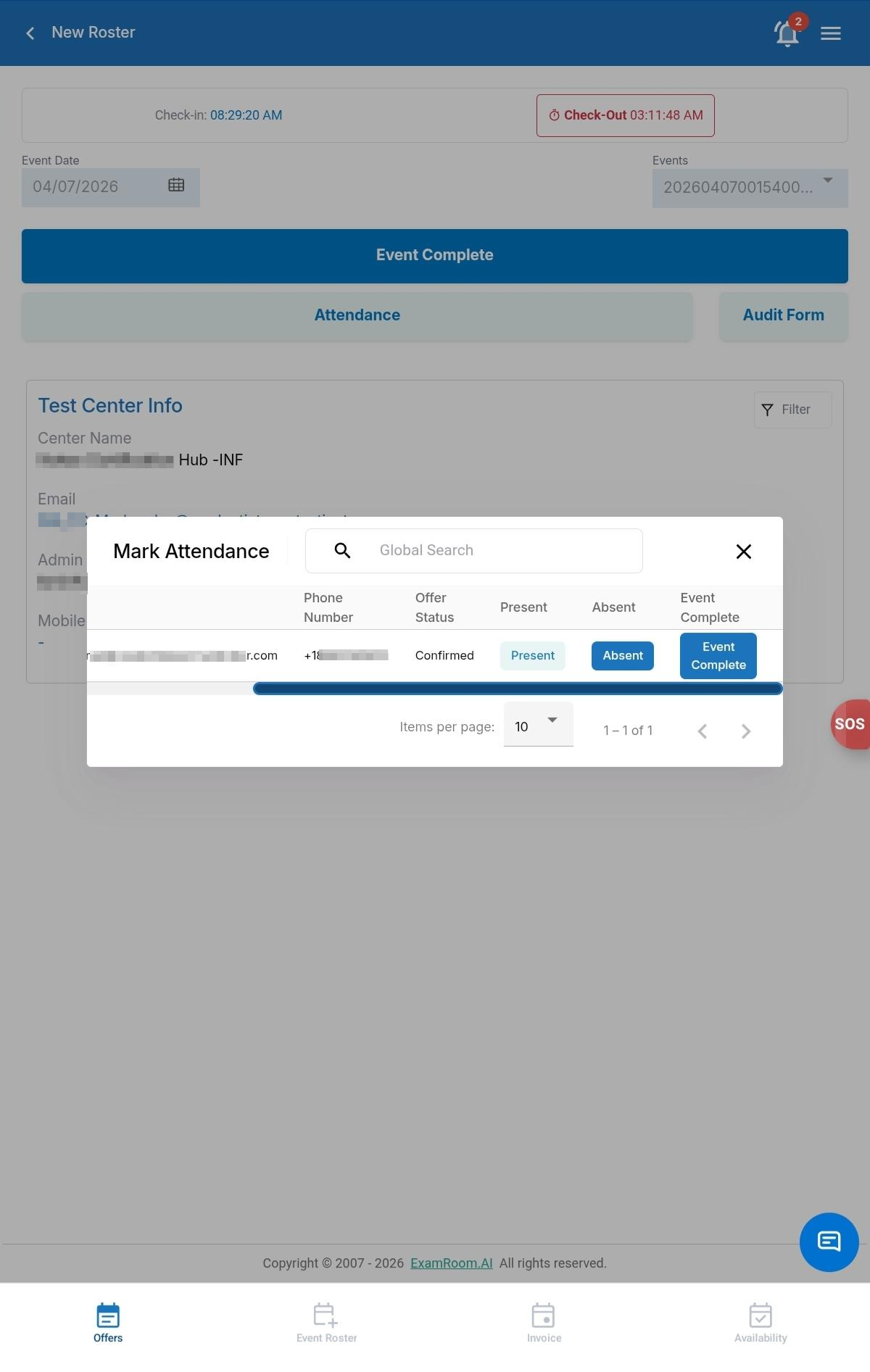
- Tap Attendance on the Roster page. The Attendance page is displayed. The Attendance button includes the new joiner’s details and an option to mark their attendance. Refer to Attendance for the New Joiners.
- The following are the descriptions of the Attendance Page:
- Global Search: Enter the keyword in the global search box to search for the new joiners.
- First Name: Displays the first name of the new joiners.
- Last Name: Displays the last name of the new joiners.
- Phone Number: Displays the phone number details of the new joiners.
- Offer Status: Displays the event offer status of the new joiners.
- Present: Tap to mark the new joiners as present.
- Absent: Tap to mark the new joiners as absent.
- Event Complete: After completing the event, you can mark the event complete on behalf of the new joiners, if required.
- Once orientation is complete, Tap Event Complete to complete the event.
- Tap Confirm displayed in the dialog box “Do you want Complete this Event?”
- After completing the event, navigate to the Event Results and Invoices in the My Account section and submit the invoices. Refer to Event Results and Invoices for more details.
Auditing or Cofacilitation
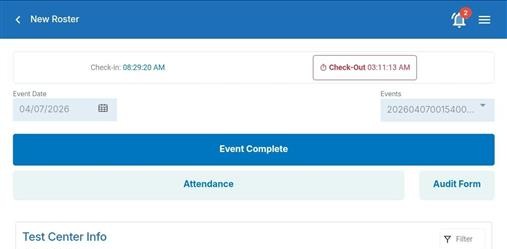
If the event is scheduled with auditing or co-facilitation for the new joiners, then the Roster window will appear with the attendance button, audit form, and candidate details.
Tap Check-In to check into the event.
Attendance for the New Joiners
The Attendance button includes the new joiner’s details and an option to mark their attendance.
To mark attendance, follow these steps:
- Tap Attendance on the Roster page. The Attendance page is displayed.
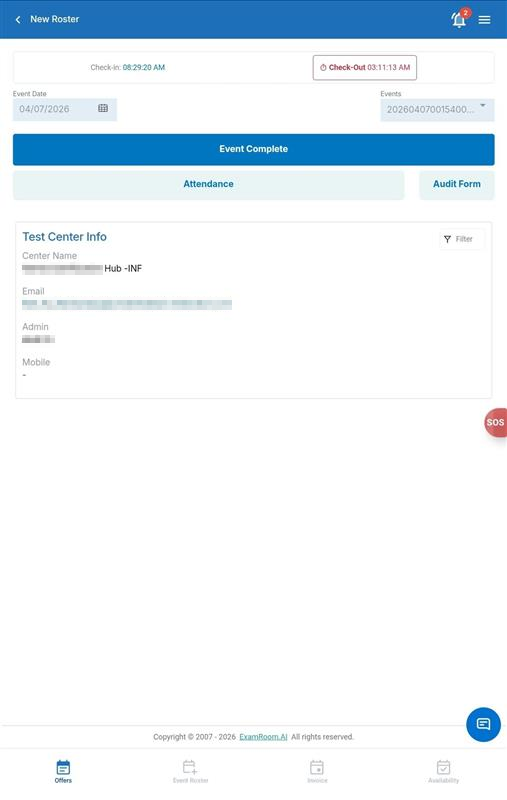
The following are the descriptions of fields found on the Attendance Page:
- Global Search: Enter the keyword in the global search box to search for the new joiners.
- First Name: Displays the first name of the new joiners.
- Last Name: Displays the last name of the new joiners.
- Phone Number: Displays the phone number details of the new joiners.
- Offer Status: Displays the event offer status of the new joiners.
- Present: Tap to mark the new joiners as present.
- Absent: Tap to mark the new joiners as absent.
- Event Complete: After completing the event, you can mark the event complete on behalf of the new joiners, if required.
Audit Form
The purpose of the Audit Form is to review the new NAE’s performance in validating the candidate’s skills.
To complete the audit form, follow these steps:
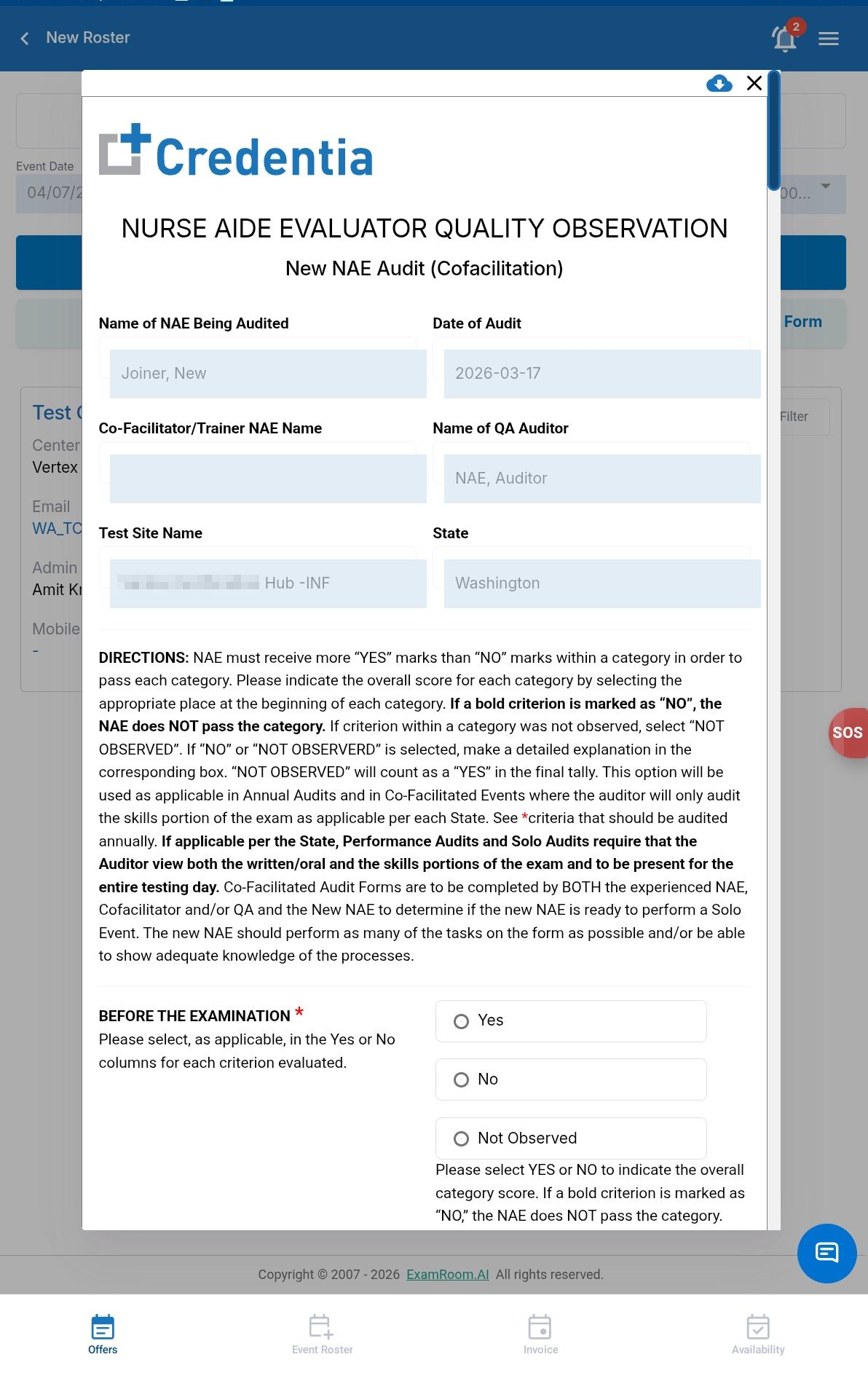
- Tap Audit Form on the Roster page. The Audit Form window is displayed.
- The first section of the Audit Form consists of non-editable fields below:
- NAE Being Audited Name: Displays the name of the new joiner who is being audited.
- Date of Audit: Displays the date of the event.
- Cofacilitator NAE Name: Displays the cofacilitator name who is assigned to cofacilitate the event (NAEs who can cofacilitate are eligible to act as cofacilitators).
- Q/A Auditor or Experienced NAE: Displays the NAE’s name who is auditing.
- Test Site Name: Displays the name of the test site.
- State: Displays the state where the event is conducted.
- In the Before the Examination section, review the steps that need to be followed by the NAE before the exam begins. Select the corresponding checkboxes (Yes or No) to validate the steps.
- During the Examination section, you should review the steps that need to be followed by the NAE during the exam. Select the corresponding checkboxes (Yes or No) to validate the steps.
- In the Skill Examination section, review the steps that need to be followed by the NAE during the skill exam. Select the corresponding checkboxes (Yes or No) to validate the steps.
- Select the checkboxes to update the number of Variances.
- Select the checkboxes corresponding to “Were any variances critical elements (bolded steps)?”
- Select the candidate count who was dual scored in the section “How many candidates were dual scored?”
Note: Auditor/Experienced NAE should dual score a minimum of 6 candidates (Colorado only: min. of 7). For all states, if fewer candidates are dual scored, the auditor must state the reason on this form. For example: “Only 5 candidates tested skills.”
- Rate the new NAE on a scale of 1 to 4.
Note: If there were 9 or more variances and/or variances with critical steps, the NAE rating automatically = 3 - NEEDS Improvement.
- Enter the description in the field “Plan of Action (completed by Credentia and the RN Nurse Aide Evaluator Quality Assurance Manager)”.
- After completing all the fields, tap Submit Form to submit the Audit form.
Note: Tap Downloadto download the Audit form to your local device.
Written Exam
This section provides instructions on how to perform proctoring for the written exam. To learn how to navigate to the Roster window and select the Event ID, refer to the section Event Roster.
Preparing Exam Booklets and Answer Sheets
Each candidate is assigned a unique Answer Sheet linked to their Booklet ID for the Written Exam. Review the booklets that are available at the test site (Or that were sent to you if you are in SC) and match the booklet with the designated candidate tile.
NOTE: If no booklets are available at the site, or they were not sent to you, or you are missing a booklet you can download and print them before onboarding the candidate.
- Each candidate receives a dedicated Answer Sheet that includes their unique Booklet ID.
- Before starting the onboarding process, you must:
- Review all booklets available and match them with the candidate tile
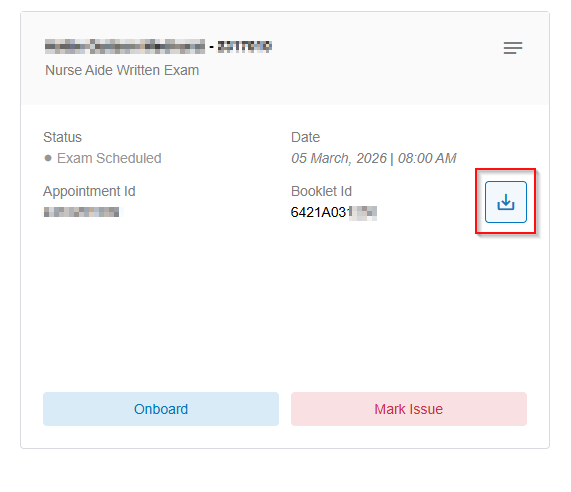
OR - Tap the Download Booklet icon on each candidate's tile to download and print the required exam booklets in advance.
- Save the PDF files and print them as needed.
- Review all booklets available and match them with the candidate tile
- This allows you to prepare and distribute all necessary booklets to candidates ahead of time, ensuring a smooth exam session.
Mark an Issue
The Mark Issue button in the candidate tile lets you mark a candidate as absent or restrict them from taking an exam. Refer to section Marking an Issue for more information.
Onboarding the Candidate for the Written Exam
To onboard the candidate,
- Refer to section Onboarding the Candidate, for the initial steps of onboarding.
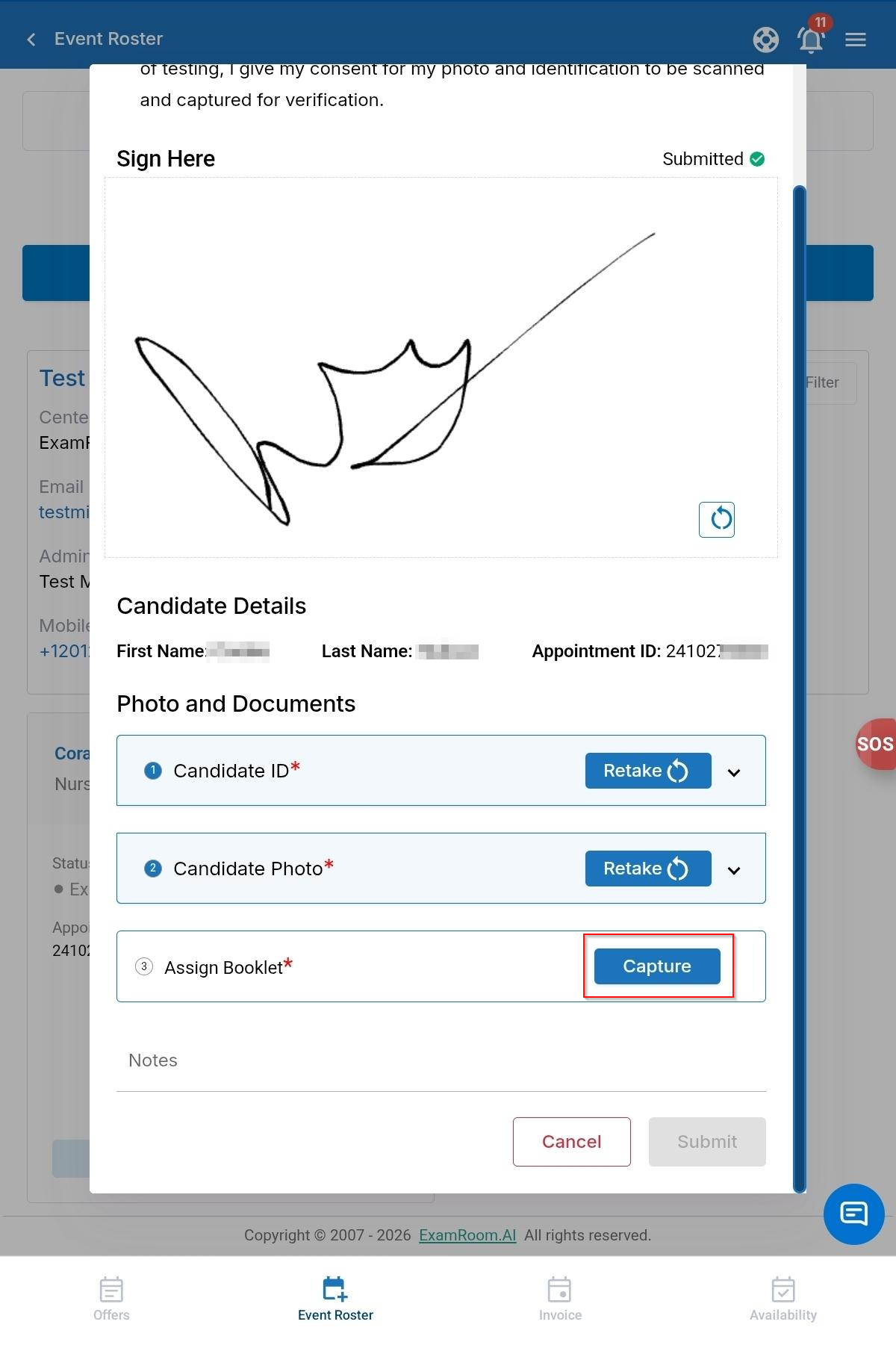
- In the onboarding pop-up window, for the written exam, you will find the Assign Booklet option to scan or capture the booklet ID.
- Tap on the Capture button provided for Assign Booklet.
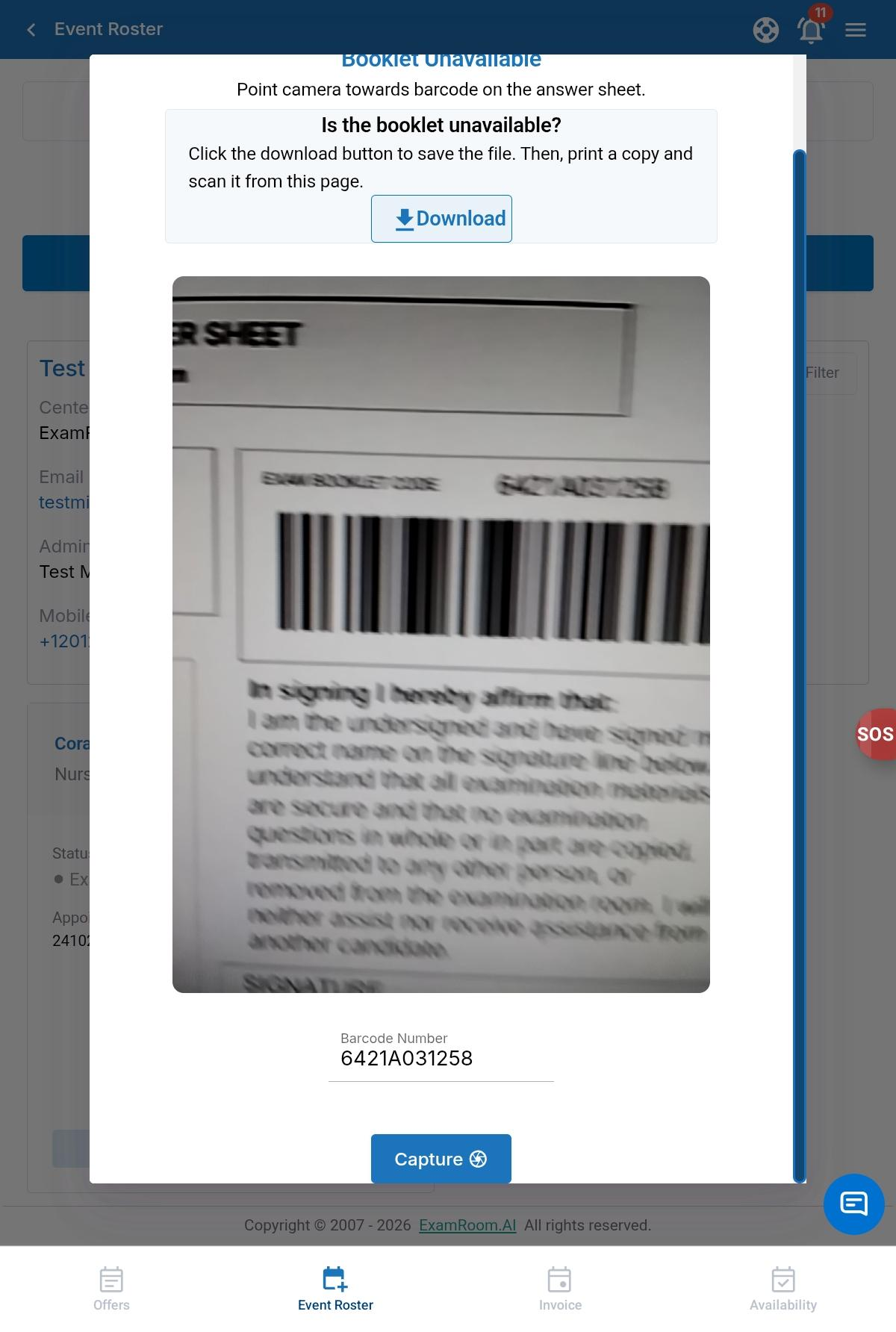
- Verify and scan the unique Booklet ID printed on the physical answer sheet assigned to the candidate being onboarded.
- If the Physical Booklet ID is unavailable, you can also download it from the scan booklet ID.
- If the Physical Booklet ID is unavailable, you can also download it from the scan booklet ID.
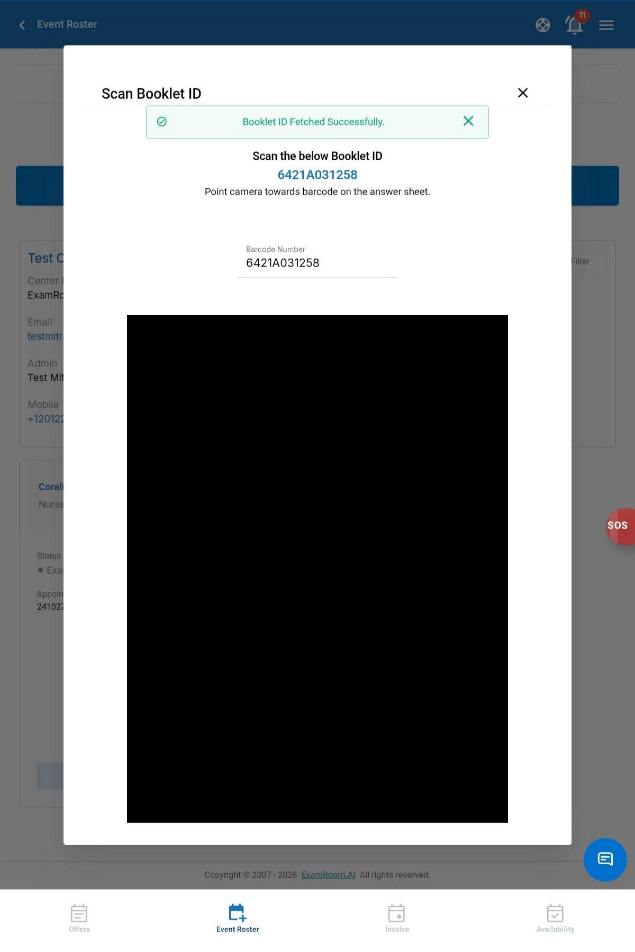
- Once the system accepts that you have scanned the correct booklet ID for that candidate, it shows a successful notification.
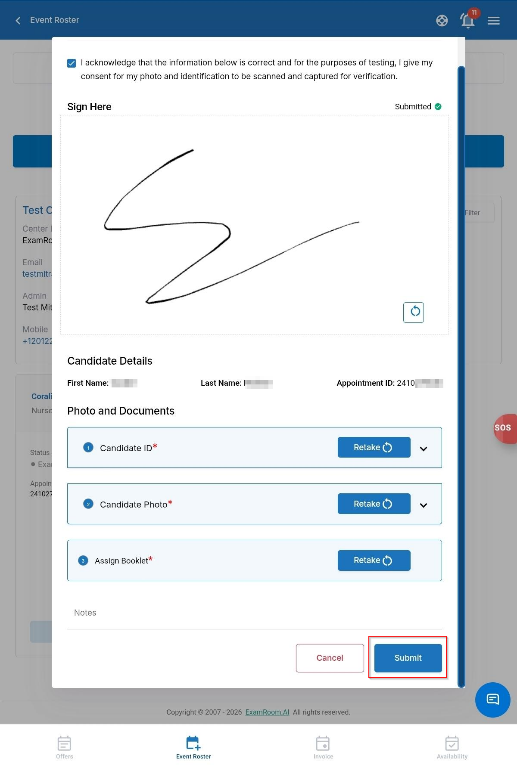
- After scanning the booklet, add the required Notes if necessary.
- Tap Submit to proceed.
- Tap on the Capture button provided for Assign Booklet.
- After the candidate's onboarding details are submitted and updated, distribute the booklet. After finishing all onboarding steps, you can proceed with the exam and proctoring process.
Note: If there is any issue with the onboarded candidate's details, you can tap on Reboard to restart their onboarding process. This will delete the initial onboarding details of the selected candidate.
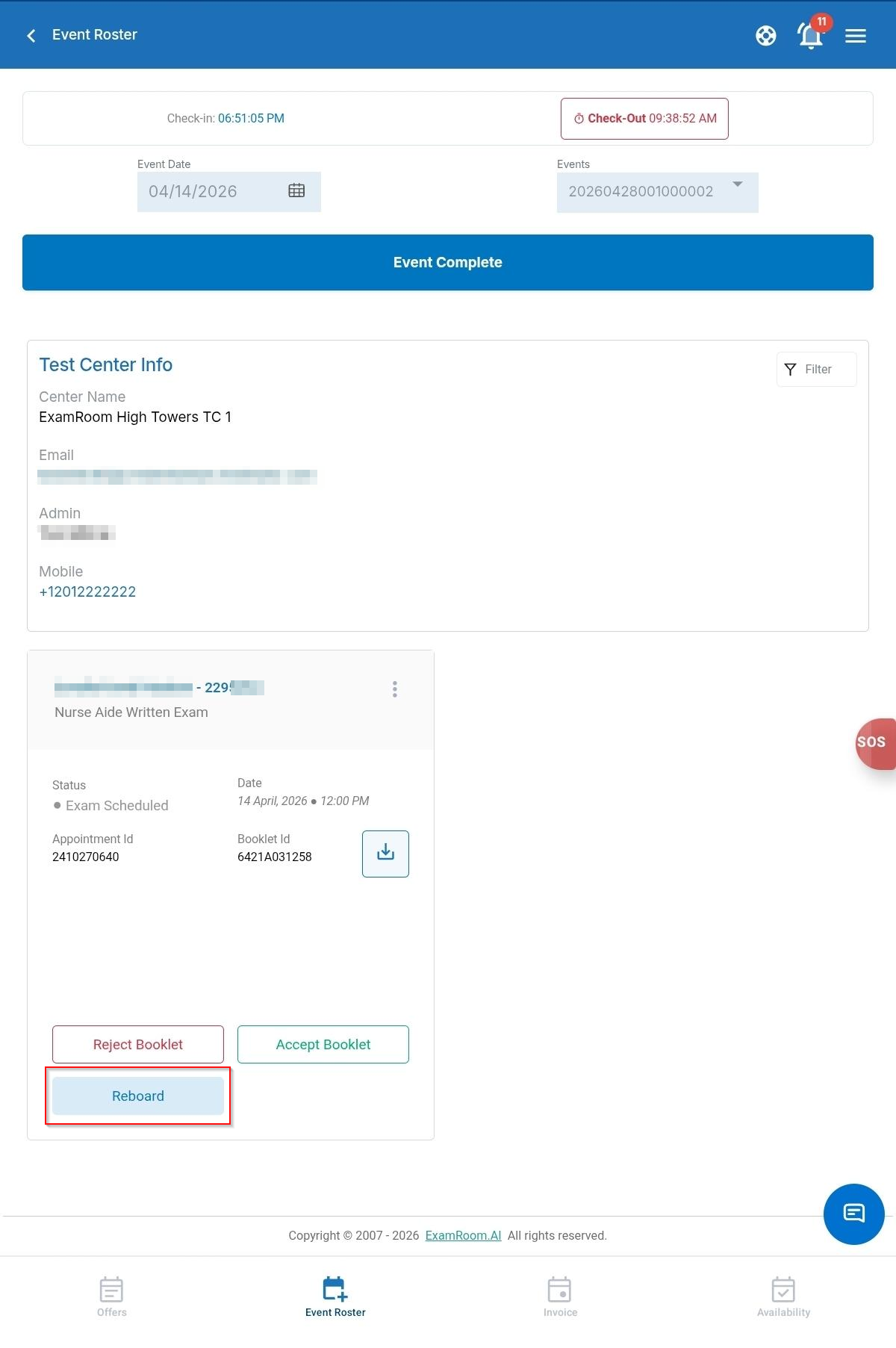
Proctoring
Once the booklet is scanned in for the appropriate candidate, the candidate tile will be changed to the following options:
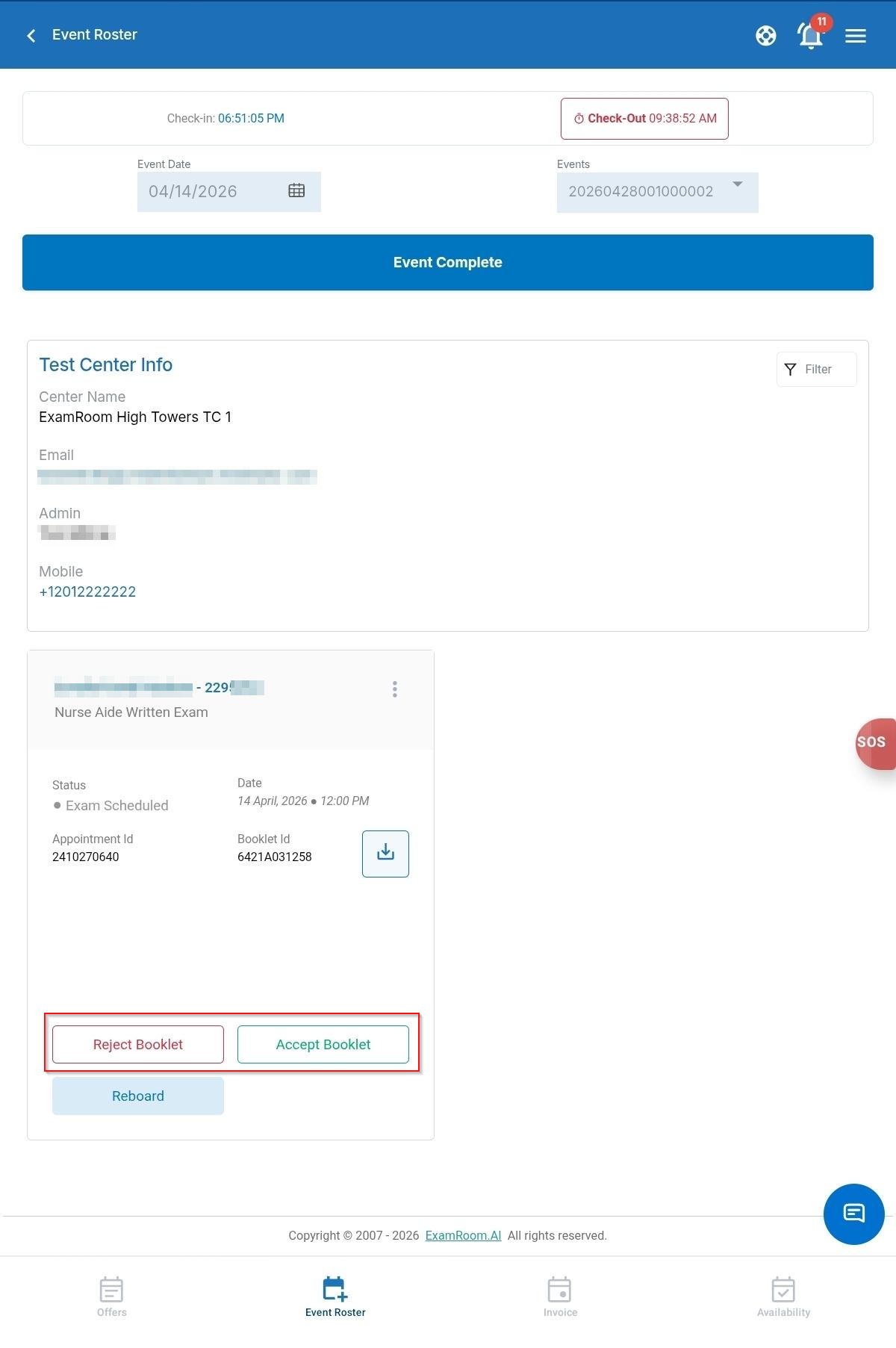
Reject Booklet
Use the Reject Booklet to reject if the candidate is cheating or has any health issues during the exam.
Accept Booklet
After completing the exam, you should collect the candidate's answer sheet and upload it.
Note: Before starting the upload process, make sure the candidate details, such as First Name, Last Name, Appointment ID, Date, and Signature, are filled in correctly.
To accept the booklet, follow these steps:
- Tap the Accept Booklet button in the respective candidate tile.
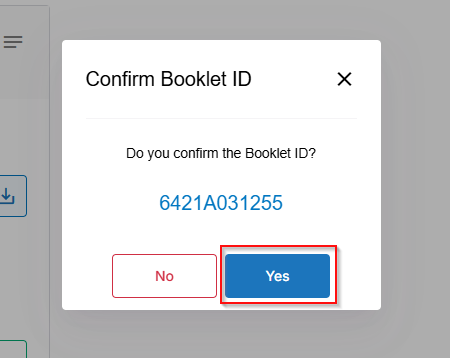
- A pop-up will appear to confirm. Tap the Yes button.
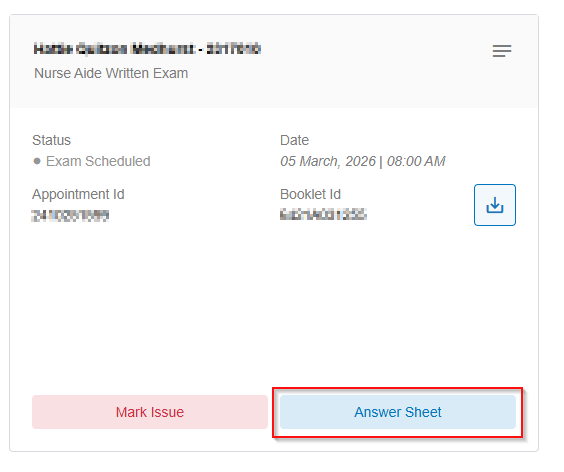
- Tap the Mark Issue to Mark Issue for a candidate. Refer: Marking an Issue.
- Tap Answer Sheet to proceed with the scan and upload.
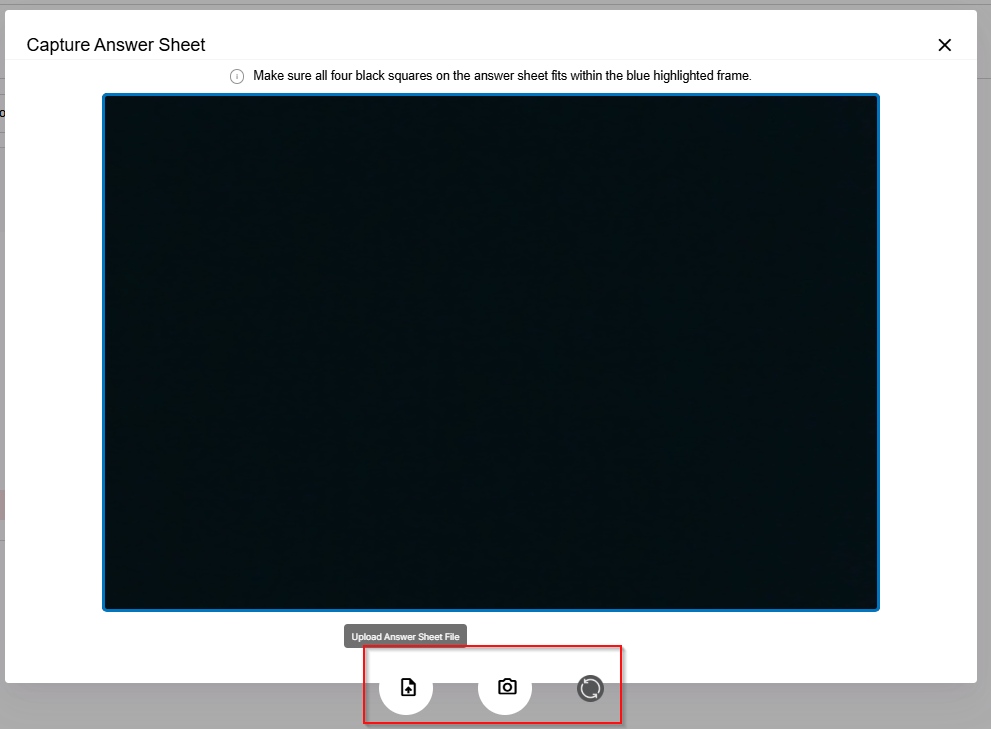
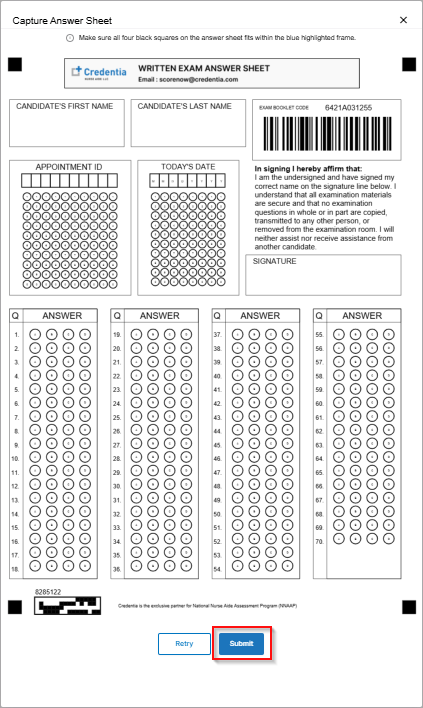
- Capture the Answer sheet of the candidate. Ensure the four corner squares of the answer sheet are completely inside the blue frame of the capturing area.
- Use the Switch Camera icon to switch between the back and front camera.
- Use the Capture icon to capture the answer sheet.
- Use the Upload icon to upload the answer sheet.
- Review the captured answer sheet and tap Submit. Use Retry if you wish to recapture or reupload the answer sheet.
- Follow the same steps for all the candidates.
Note: The checkmark in the Answer Sheet confirms that the answer sheet has been uploaded, and the Person Score section displays the candidate's scored status.
Shredding the Answer Sheet
After uploading the answer sheet, you must shred it.
Note: Start the shredding process after uploading all candidates' answer sheets.
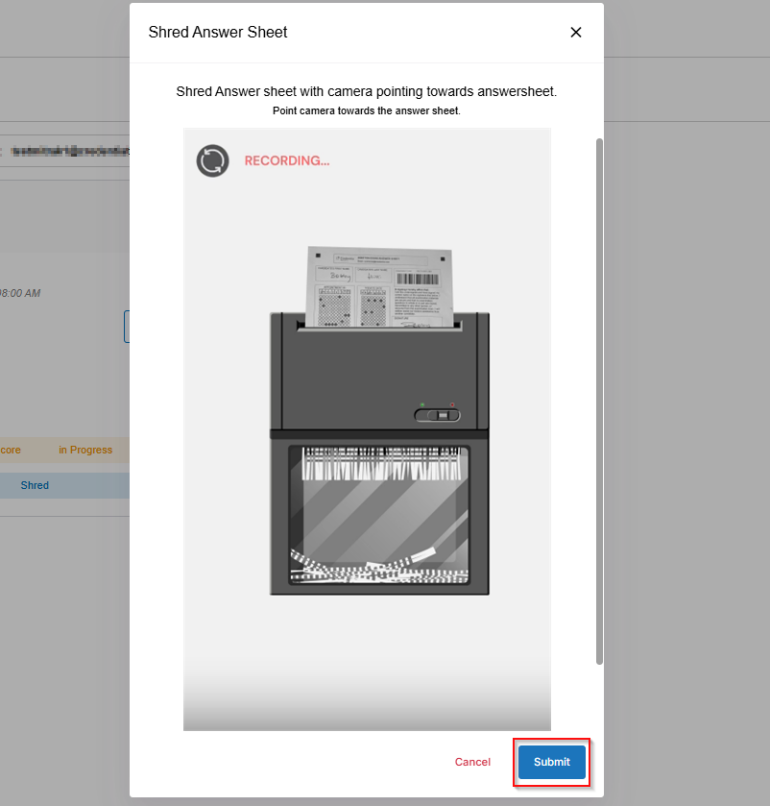
To shred the answer sheet, follow these steps:
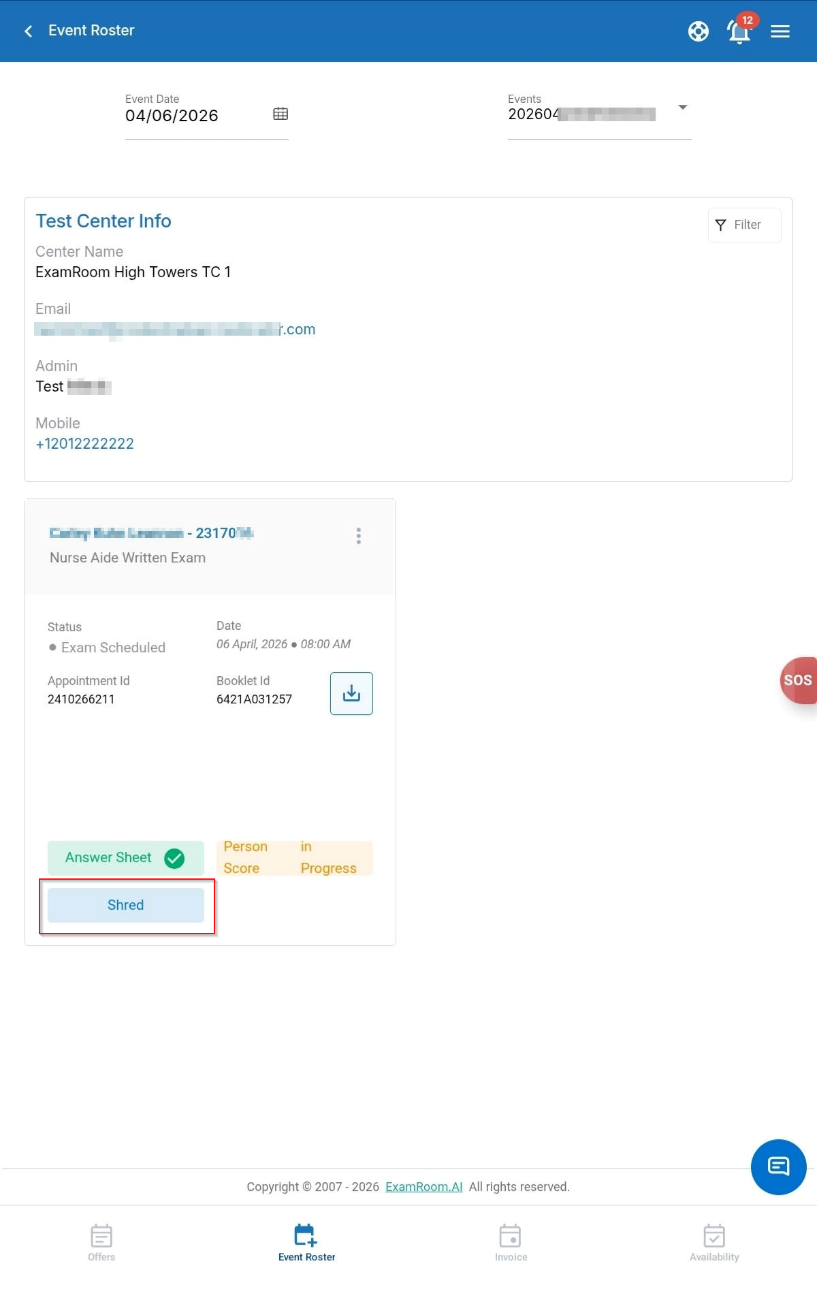
- Once the answer sheet is uploaded successfully, the candidate tile will display the Shred option.
- Tap Shred to start the shredding process.
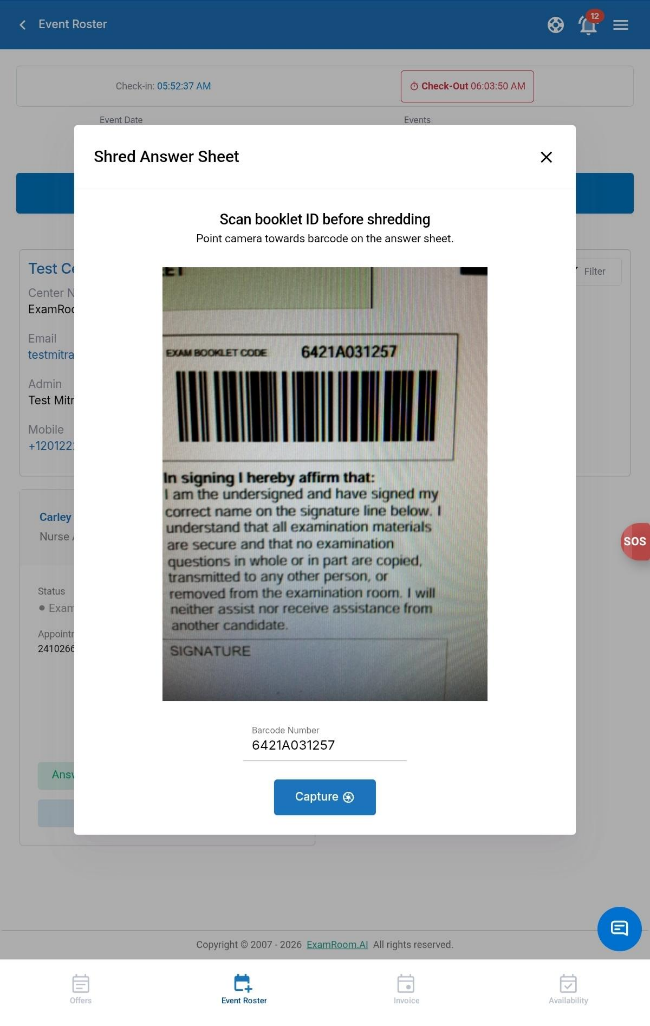
- A pop-up will appear to request access to the camera. Tap Allow to access the camera.
- You can either scan the bar code in the booklet or enter the Booklet ID in the Bar Code field.
- Tap Capture.
- Record the shredding of the answer sheet. Verify the Booklet ID of the answer sheet is visible in the recording.
- Tap Submit.
- Follow the same steps for all the candidates to shred the answer sheet.
Note: The checkmark in the shred indicates that the shredding process is complete.
Event Complete
Once you have proctored all candidates, tap Event Complete and Confirm to finalize the event.