Download and Install Credentia EvalPro App
Follow the steps to download and install the phone notification app:
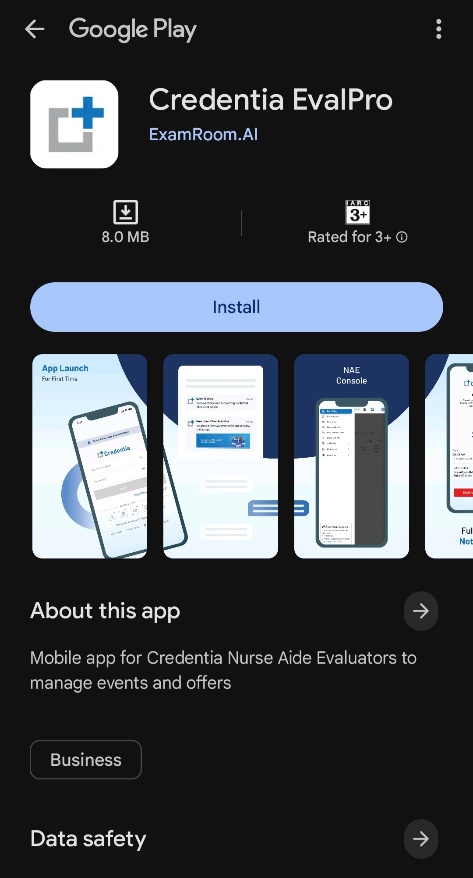
- Scan the QR code below, or search for Credentia Evalpro in the Google Play/Apple store from your phone to download and install the phone notification app from Google Play (Android users) or App Store (Apple users).
- If you are using Android devices (for the Google Play link), scan the QR code below to install and open the app.
- If you are using Apple devices (for App Store link), scan the QR code below to install and open the app.
- If you are using Android devices (for the Google Play link), scan the QR code below to install and open the app.
- Tap on the Google Play or Apple App Store link that appeared when scanned to navigate to the Google Play Store / Apple Store and install Credentia EvalPro.
- If you are using an Android device,
- Tap the Install button to install the app.
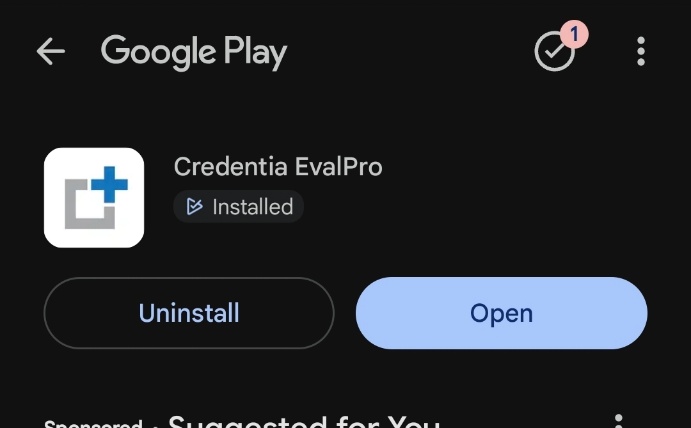
- Once installed, tap the Open button to proceed with login.
- Tap the Install button to install the app.
- If you are using an Apple device,
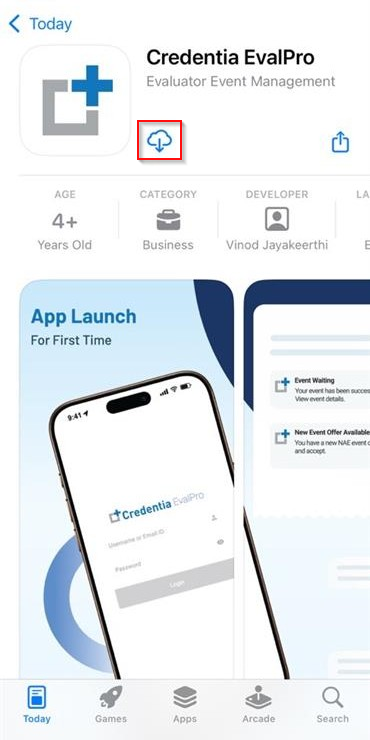
- Tap the Cloud Download icon to install the app on the device.
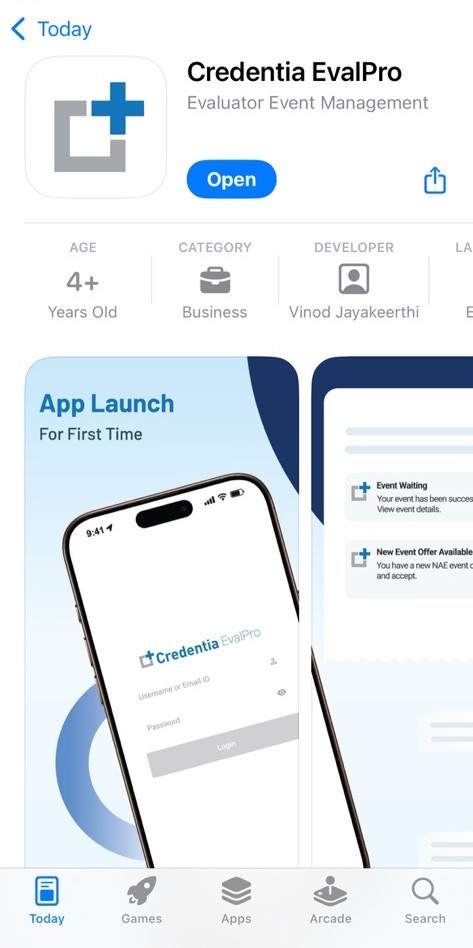
- Once the download is complete, tap the Open button to proceed with login.
- Tap the Cloud Download icon to install the app on the device.
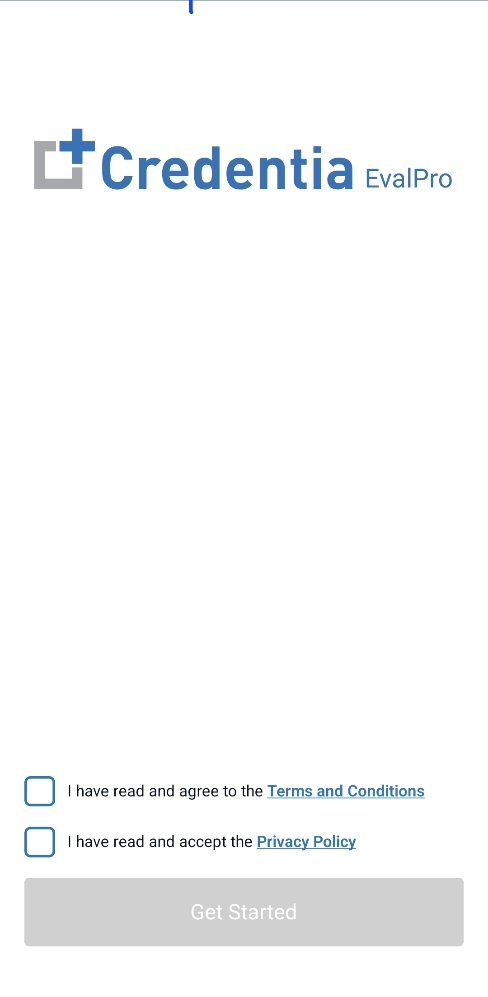
- In the app, read through the terms and conditions and privacy policy before proceeding.
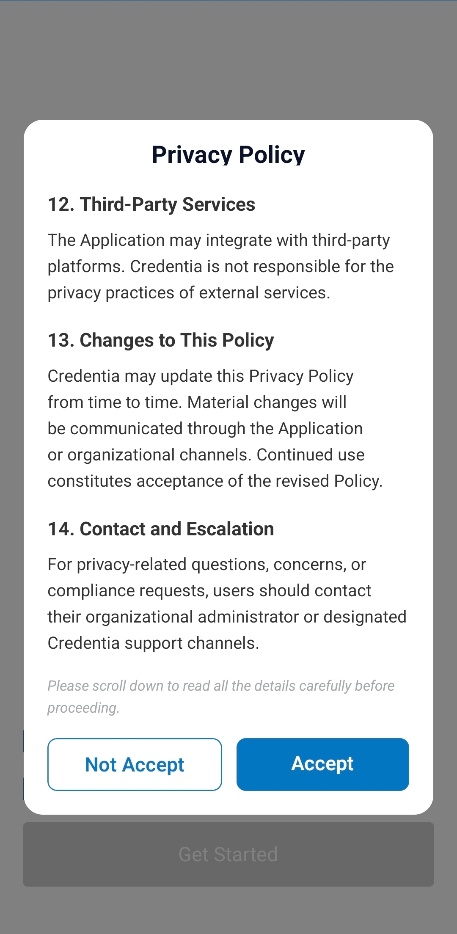
- Check the boxes and scroll to read through the terms and conditions, privacy policy, and tap accept to agree and proceed.
- Once you check the box, you must scroll and read through the terms and conditions, privacy policy, respectively, and tap Accept to agree and proceed. If you select Do Not Accept, you will not be able to proceed.
Note: Scrolling to the end of the page will enable the Accept button.
- Check the boxes and scroll to read through the terms and conditions, privacy policy, and tap accept to agree and proceed.
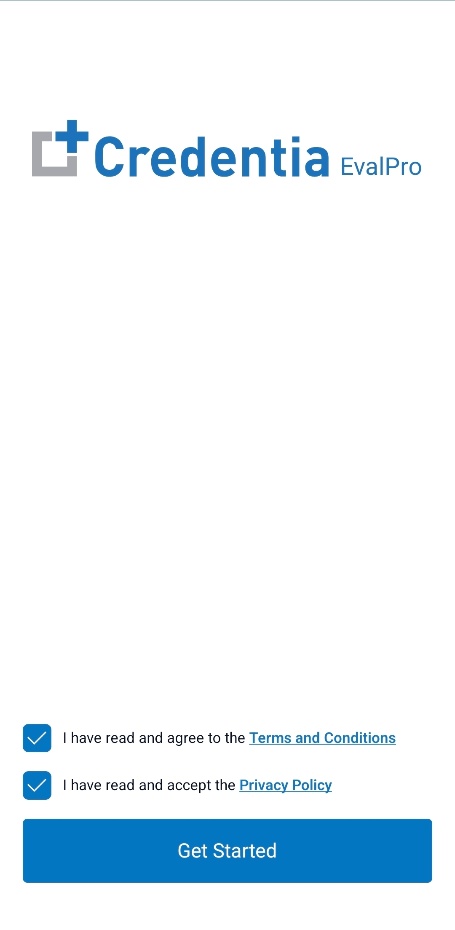
- After accepting, tap the Get Started button to proceed.
Note: The Get Started button will appear only after both checkboxes are accepted.