View and Update Availability
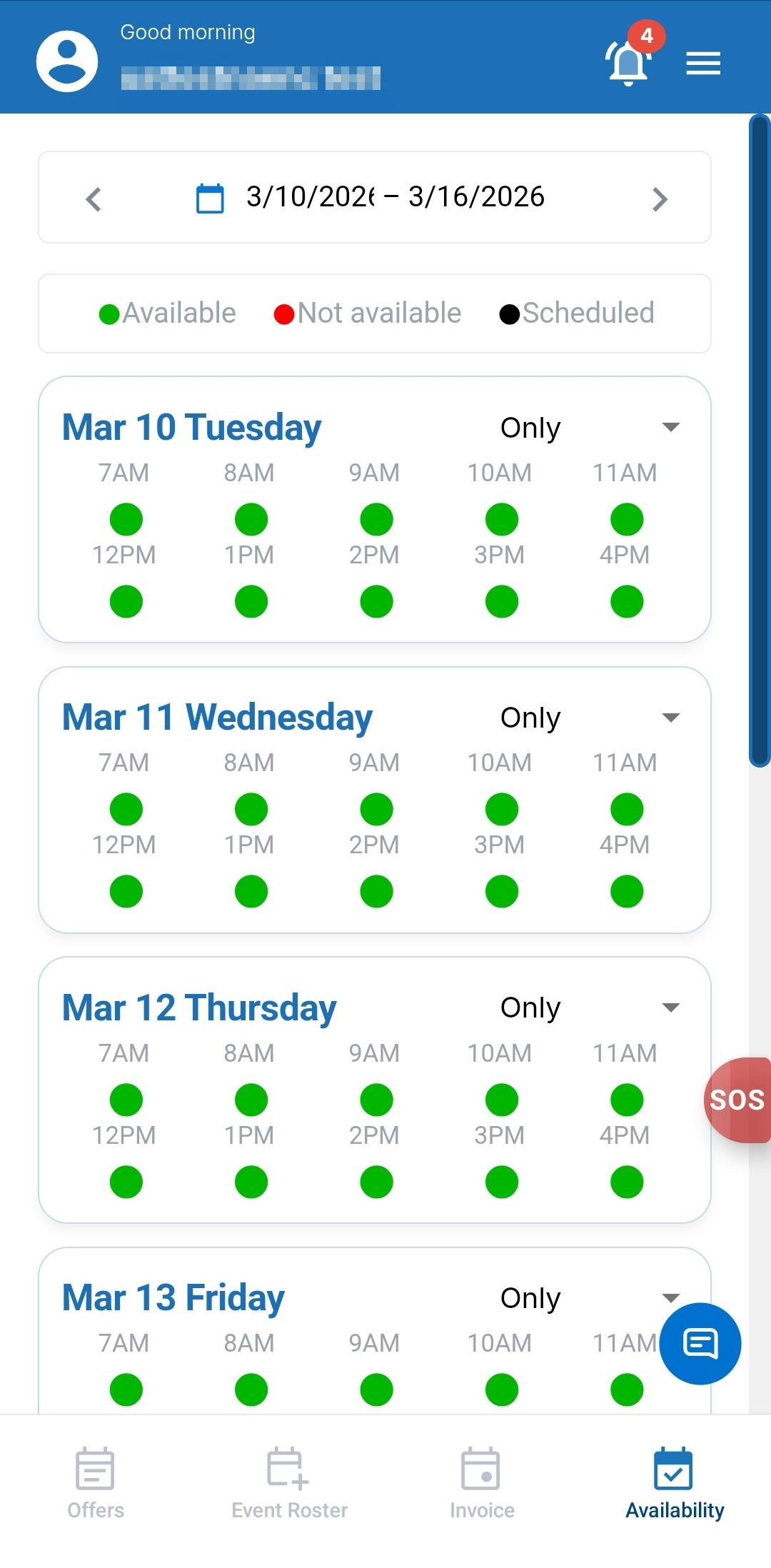
The Availability section allows you to manage your schedule for upcoming events. By default, your schedule is marked Available (green), indicating that you are ready to receive Event Offers.
If you have other commitments, you can update your schedule by marking specific dates or time slots as Not Available. The Event creation model uses your availability schedule to send Event Offers for events that match your available time.
Best Practice: Update your availability schedule 2–3 months in advance to ensure you receive relevant Event Offers.
Viewing Availability
To view your availability schedule:
- Tap Availability from the bottom navigation bar.
- The Availability page is displayed, showing your schedule for the selected date range.
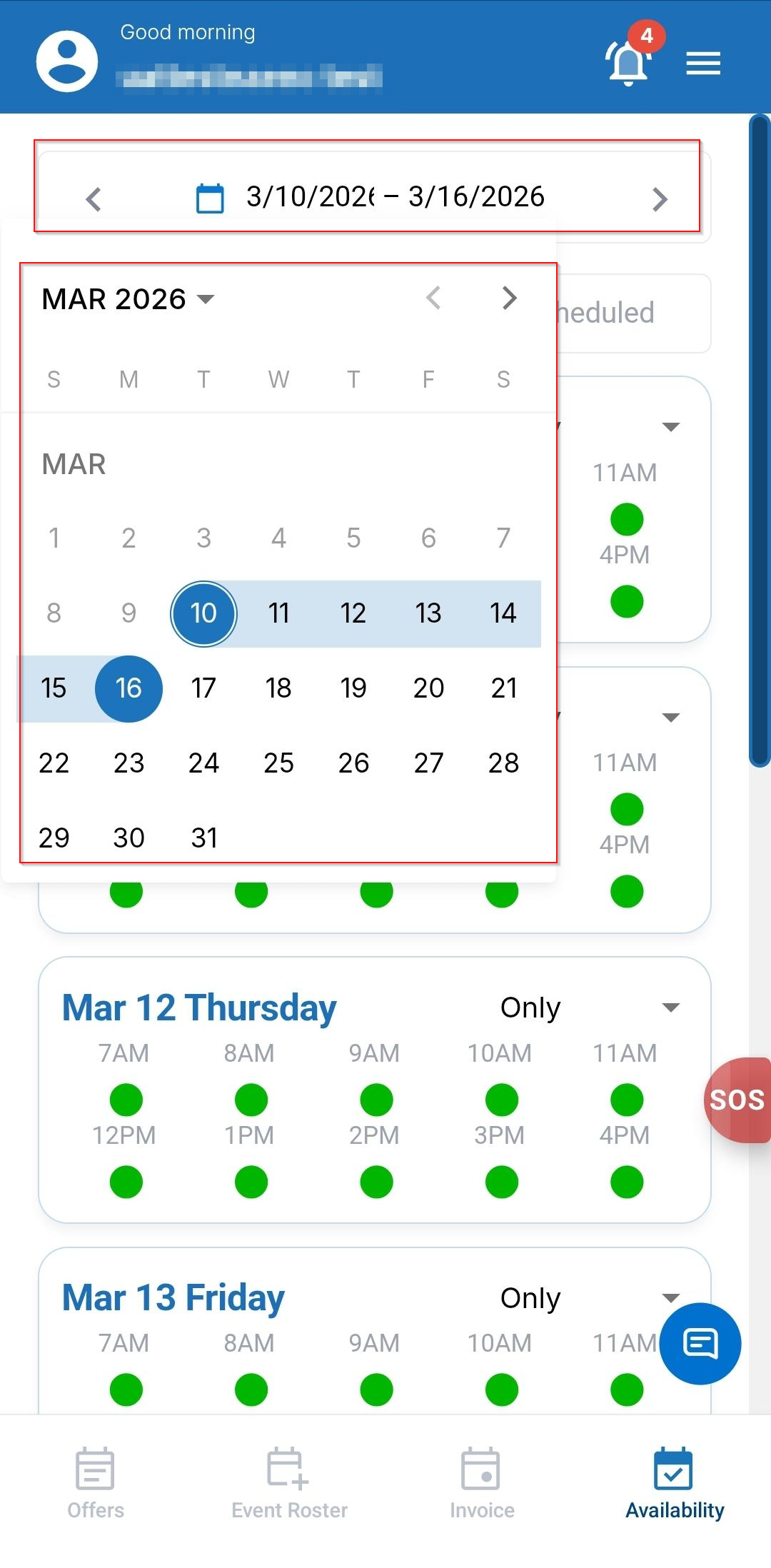
- Tap the calendar icon to select the required date or date range.
- Review your availability for each day in the schedule.
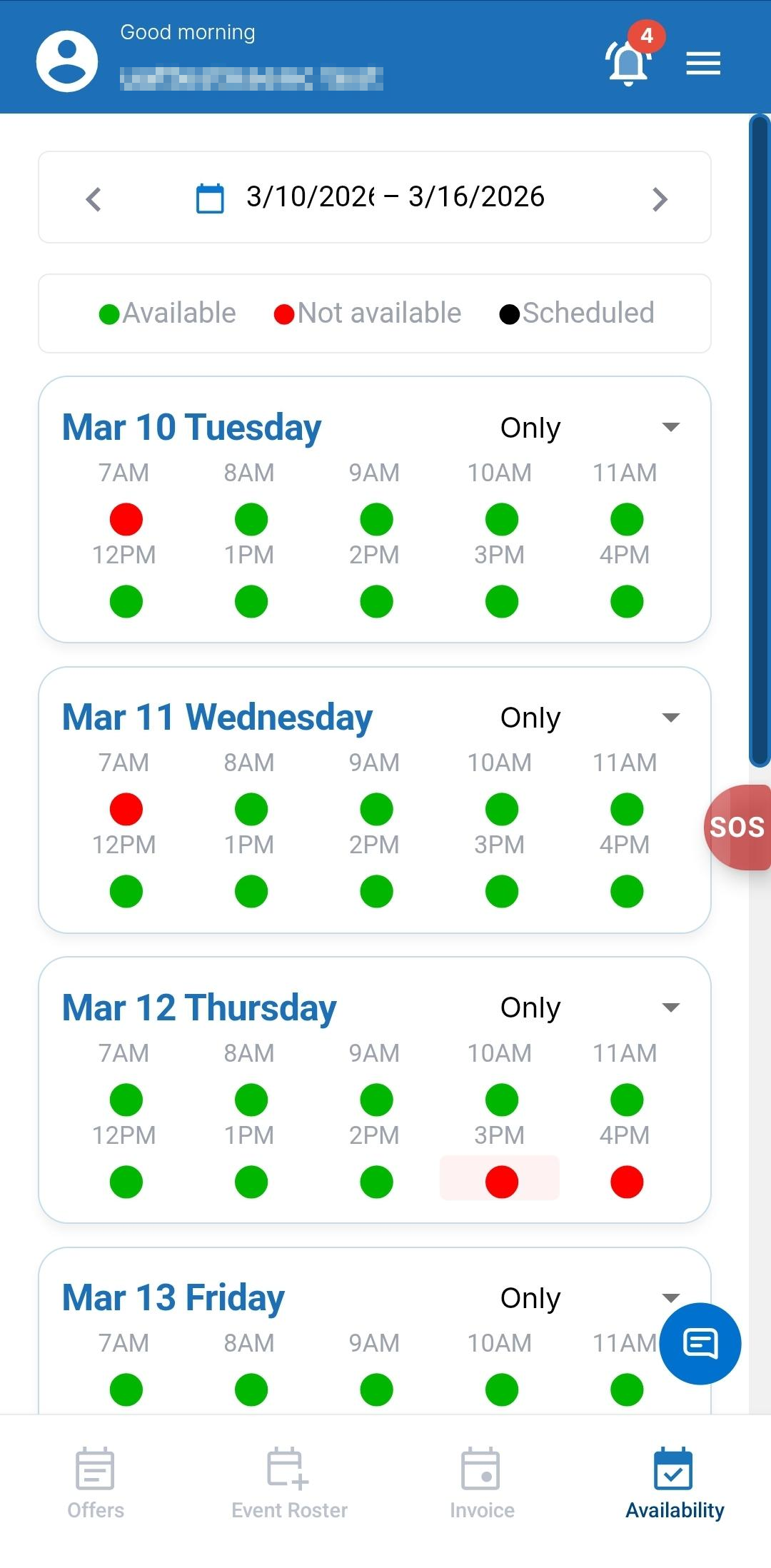
- Refer to the availability indicators:
- Green Dot: Indicates that you are available to work during that time slot.
- Red Dot: Indicates that you are not available to work during that time slot.
- Black Dot: Indicates that an event is already scheduled for that time slot.
Scheduling NAE Availability
To update your availability:
- Tap Availability from the bottom navigation bar.
- Tap the Calendar icon and select the dates for which you want to update availability.
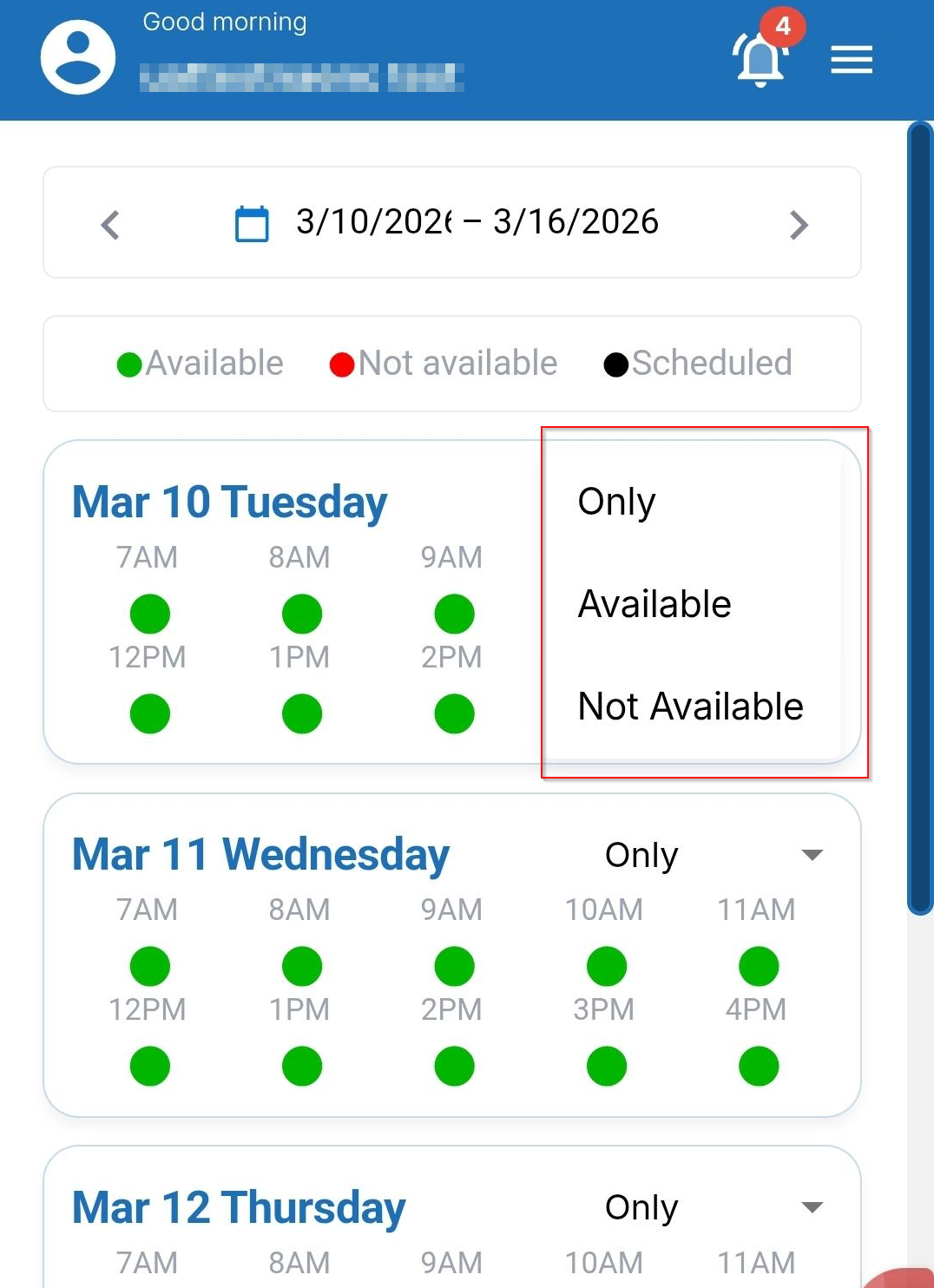
- Go to the selected date to view the Day Availability breakdown by hour and select one of the following options in the dropdown to update your schedule:
- Only: Allows you to update availability for specific hours of the selected day.
- Available: Marks the entire day as available.
- Not Available: Marks the entire day as unavailable.
- For specific hours, select the Only option to update your schedule.
- Tap on the hour dot to switch the availability status between available and not available.
- Tap on the hour dot to switch the availability status between available and not available.
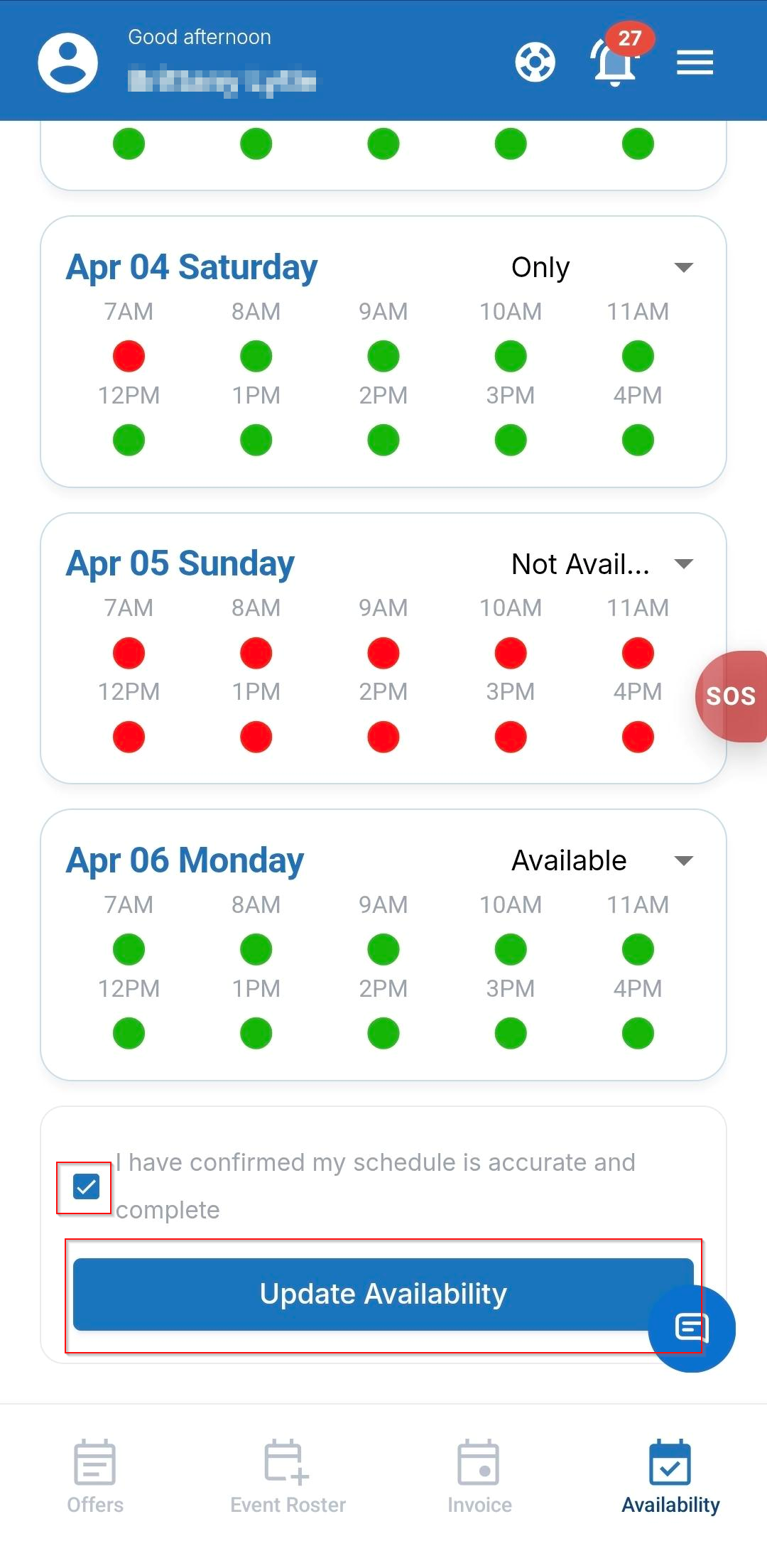
- After updating the availability status, ensure you check the confirmation check box and tap the Update Availability button to save the changes.
Note:- You can select multiple dates to update availability.
- Availability updates help Credentia Operations assign events based on your schedule.
- Time slots with scheduled events appear with a black indicator.