
Event Offers
You can view the list of Event Offers created by Credentia Operation in the Event Offers section. You can accept or decline the offers at your convenience. Event Offers provide the basic information of the event, such as Event ID, Offer ID, Distance, etc.
Viewing Event Offers
To view Event Offers, follow these steps:
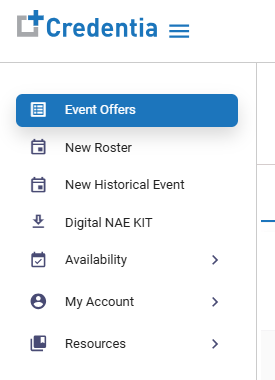
- In the left-side navigation menu, select Event Offers from the dropdown.
The Event Offers page will be displayed as shown below.
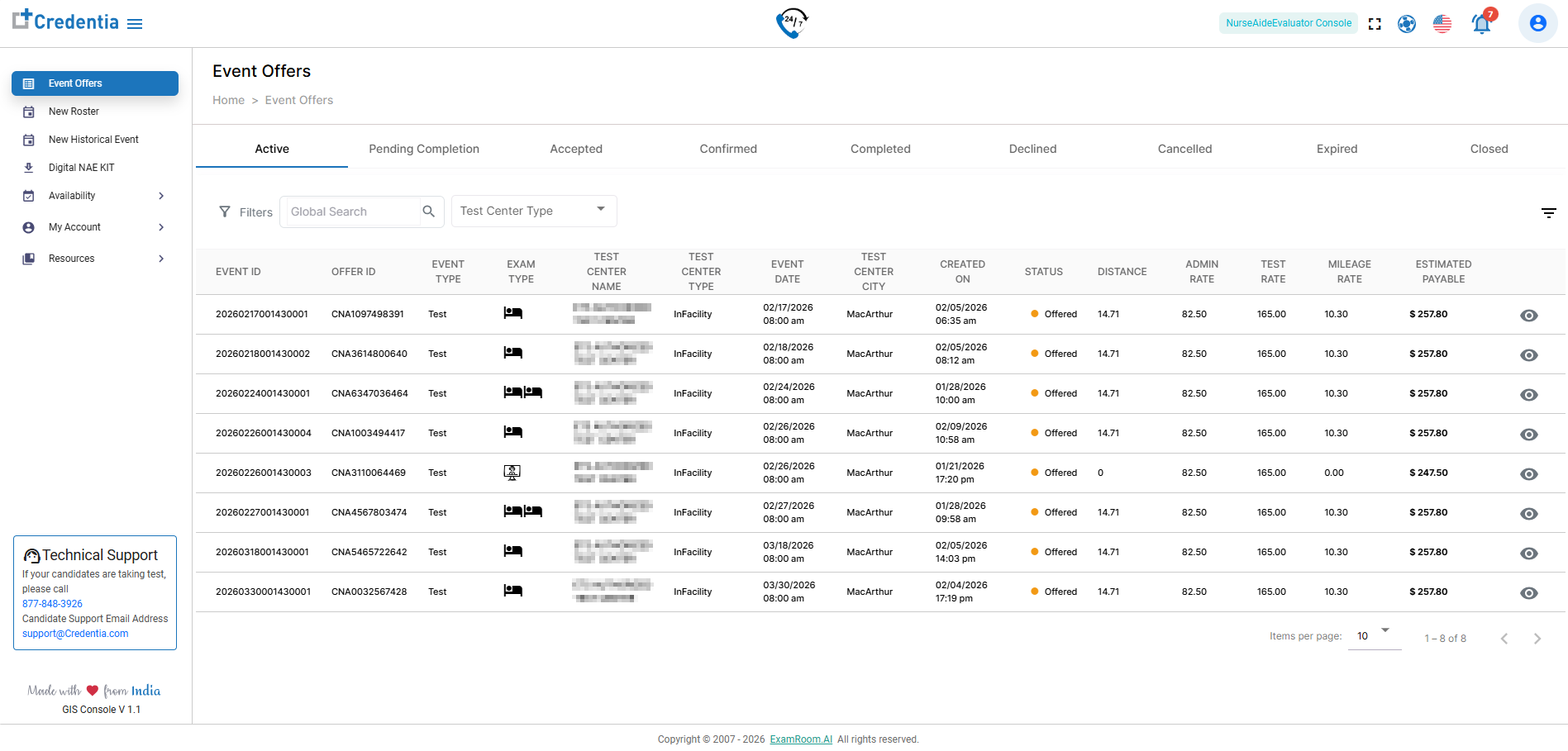
Event Offers shows the list of tabs below:
| Field or Icon | Description |
| Active | Displays the list of active Event Offers. |
| Pending Completion | Displays the list of past Events, where the Event Complete button has not been clicked on. |
| Accepted | Displays the list of accepted Event Offers. |
| Confirmed | Displays the list of confirmed Event Offers. |
| Completed | Displays the list of Events that have been completed successfully, including clicking on the Event Complete button. |
| Declined | Displays the list of declined Event Offers. |
| Canceled | Displays the list of canceled Event Offers. |
| Expired | Displays the list of Event Offers that are not accepted and have expired. |
| Closed | Displays the list of event offers that were closed because the event was canceled. |
The event Offers page shows the details of the Event Offers, such as Event ID, Offer ID, Event Type, Exam Type, Test Center Name, Test Center Type, Event Date, Test Center City, Created On, Status, Admin Rate, Test Rate, Mileage Rate, Estimated Payable, and view icon to view the complete details of the offer.
| Field or Icon | Description |
| Event ID | Displays the unique ID of the Event Offers |
| Offer ID | Displays the unique ID of the Event Offer. |
| Exam Type | Displays the exam type icon. Hover over the icon to view the icon label. |
| Test Center Name | Displays the test center name where the event will be conducted. |
| Test Center Type | Displays the test center type where the event will be conducted.
|
| Event Date | Displays the event date and start time. |
| Test Center City | Displays the city name where the event is scheduled to take place. |
| Created On | Displays the event creation date. |
| Status | Provides the status of the Event Offer.
|
| Admin Rate | Displays the standard admin rate. |
| Test Rate | Displays the standard test rate. |
| Mileage Rate | Displays the standard mileage rate. |
| Estimated Payable | Displays the total estimated payable for the event. |
 | Use Global Search to search using any keyword mentioned in the table. |
 | Enter Test Center Type in the search box to search the list based on test center type. |
 | Click to sort the list either in alphabetical order or in numerical order. |
 | Click to view and edit the Event Offer. |
 | Click to select the required check boxes that you want to view in the report. |
Accepting or Declining Event Offers
You can accept or decline the Event Offers at your convenience. Once a new event is created, you will receive a notification email, and you can accept or decline the Event Offers in the email. In the other option, navigate to Event Offer in the GIS platform and search for the event in the Active Offers tab.
To accept or decline the Event Offers in the GIS platform, follow these steps:
- In the Event Offers page, select the offer you want to accept or decline in the Active Offer tab.
- Click the View icon to accept or decline the Event Offer.
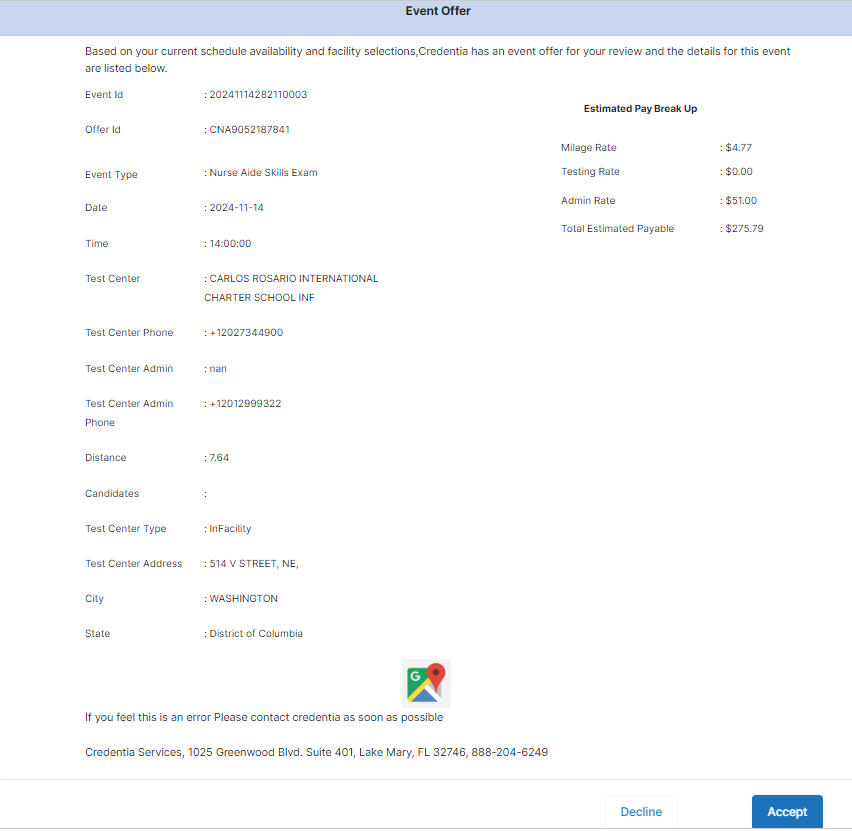
- Check all the details of the Event Offer:
- Click Accept to accept the Event Offer.
- Click Decline to decline the Event Offer.
Note:
- You can accept or decline only the Event Offer that is in offered status.
- All NAEs will be notified by email for each Event Offered. However, receiving the email does not imply that you can proctor the event.
- Once the offer is accepted, Credentia Operations must approve it to confirm the event.
Event Offer Notification
The event offers are sent based on availability and GIS metrics. The event offer may be sent automatically to one or more NAEs. Accepting the event offers on priority will help process the confirmation and prevent the event offers from expiring.
You can log in to the Credentia Platform, then under the event offers or notifications section. You can view all active offers in the event offers section to accept or decline. To facilitate easy updates on event offers and confirmations, you will be notified via the listed channels in the order they appear if an event offer is unattended (accepted or declined).
- Phone notification (via phone app)
- SMS
- Call (automated call)
Email notification:
Once the Event offer is initiated, you will receive an email notification at your registered email address and on the Credentia platform (web portal). Refer: Accepting or Declining Event Offers on the Credentia platform. You can also accept or decline offers through the email notification you have received.
Follow the steps below to accept or decline event offers through email notification:
- Go to the Event offer notification email you received at your registration email address.
- On the email, you can view all the details related to the event offered to you, and at the bottom of the email, you have two buttons available: Accept and Decline.
- Click on one of the options (Accept or decline) to update the event offers sent.
Phone Notification:
Phone notifications can be accessed by installing the Phone app (Credentia EvalPro). The event you are offered will be sent to your phone as well, and you will have the option to accept or decline the event offer seamlessly through the Credentia notification app.
To know how to install and enable the phone notification app, refer to Credentia EvalPro.
SMS
An SMS notification is sent to NAEs when a new event offer is assigned to them. The message prompts the NAE to review the event details and respond by accepting or declining the offer within the specified timeframe.
Call (automated call)
An automated call notification is triggered when an event offer is assigned to an NAE. The call provides key event details and prompts the NAE to accept or decline the offer using the phone keypad within the specified response window.