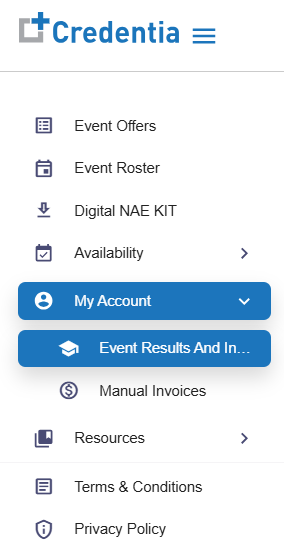
My Account
In the My Account section, you can review and submit generated event results and invoices, as well as manually submit an invoice.
Event Results and Invoices
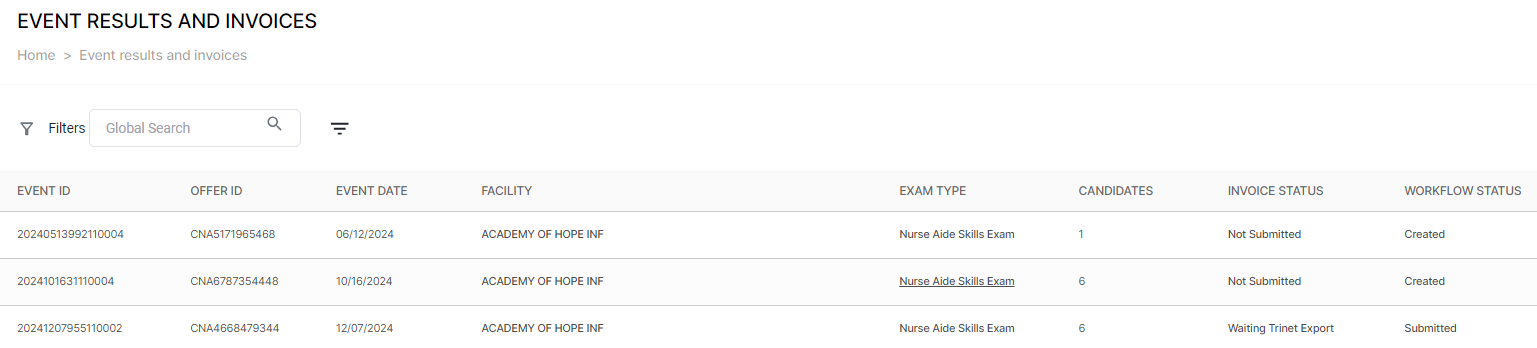
The Event Results and Invoices window displays the list of invoices generated for the events you attended, along with their statuses. It includes a facility report section to document actual conditions and rate the facility, a general exam feedback section to provide exam-related feedback, and a section to view your invoices for the Event. It also includes candidate incidents if any incidents are marked in the events.
In the invoice section, if you find any discrepancies on your invoices, you can raise a concern for re-verification. Once you submit your report, the Credentia Operations will review and process it.
Note: NAEs are expected to review and submit the Event Results and Invoice within 24 hours of completing an event.
To access the page,
- Select Events Results and Invoices from the dropdown in the My Account section.
- Select the required Event with the invoice status Not Submitted you want to submit under Event Results and Invoices.
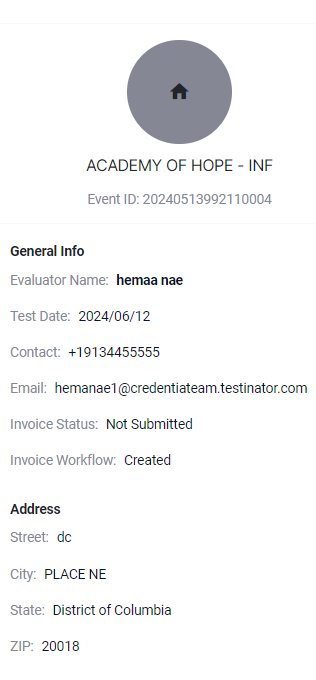
- You can view your General Info and Address in the left window.
- Event Results and Invoices contain four components:
- Facility Report
- General Exam Feedback
- Candidate Incidents
- Total Time & Expenses
Facility Report
The Facility Report section allows you to provide feedback regarding the facilities. Your feedback will be recorded and help the test centers address any issues or make improvements if necessary.
Note: It is not mandatory to update all the fields.
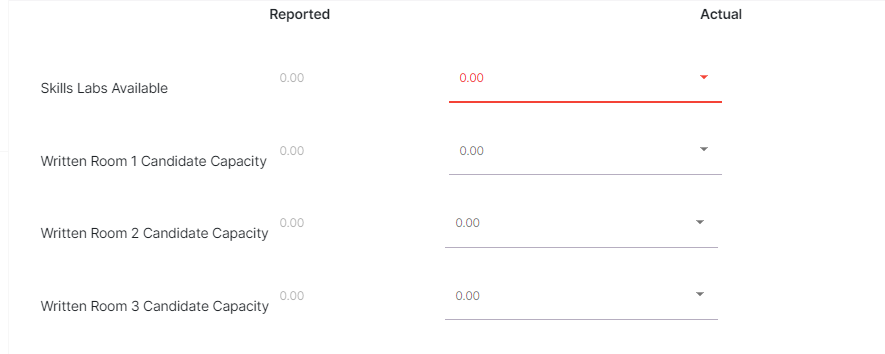
In the above field, reported values are recorded based on the values provided by the test centers. In the Actual Values field, you can provide your values by selecting from the dropdown menu.
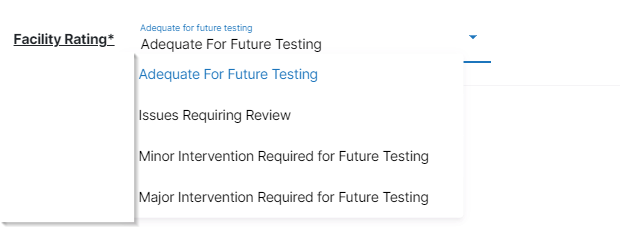
Facility Rating
- Click Facility Rating and select the options from the dropdown menu shown below.
- Adequate For Future Testing.
- Issues Requiring Review.
- Minor Intervention Required for Future Testing.
- Major Intervention Required for Future Testing.
Note: It is mandatory to update the facility rating.
Test Center Issues
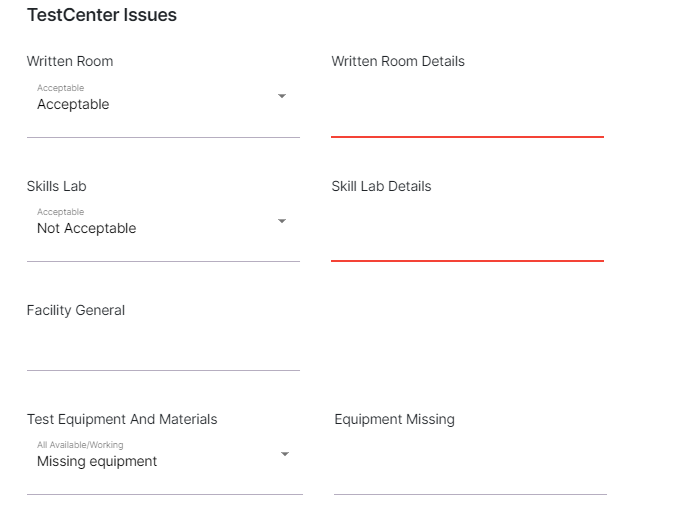
The Test Center Issues field allows you to update the issues faced in the test center. The facilities are categorized into Written Room, Skills Lab, Facility General, and Test Equipment and Material.
In the Written Room and Skills Lab tab, click and select either Acceptable or Not Acceptable from the dropdown menu and enter the details.
In the Facility General tab, enter your comments regarding the general issues faced during exams.
In the Test Equipment and Materials field, click and select either Missing equipment or All available/working from the dropdown menu, and enter the comments in the Equipment Missing field.
General Exam Feedback
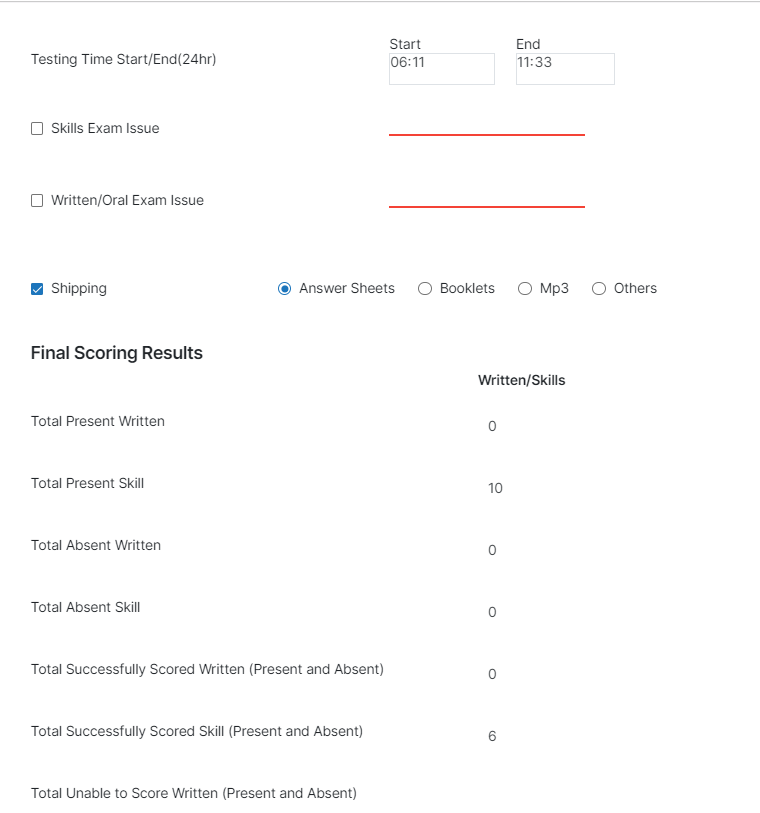
The General Exam Feedback option allows you to provide valuable feedback about the exam. It also displays the Final Scoring Results of the Event Offer.
| Field or Icon | Description |
| Testing Time Start/End (24hr) | Displays the Start and End time of the Event. |
| Skill Exam Issue | Allows you to update the issue faced during the skill exam. |
| Written/Oral Exam Issue | Allows you to update the issue faced during written/oral exams. |
| Shipping | Select Shipping from the options below:
|
| Final Scoring Results | Displays your final scoring results of the Event Offers. |
| Total Present Written | Displays the number of candidates present for the test. |
| Total Absent Written | Displays the number of candidates absent/marked issue for the test. |
| Total Successfully Scored Written (Present and Absent) | Displays the number of candidates who scored successfully in the written test. |
| Total Successfully Scored Skill (Present and Absent) | Displays the number of candidates who scored successfully on the skill test. |
| Total Unable to Score Skill (Present and Absent) | Displays the number of candidates who failed the skill test. |
Candidate Incidents
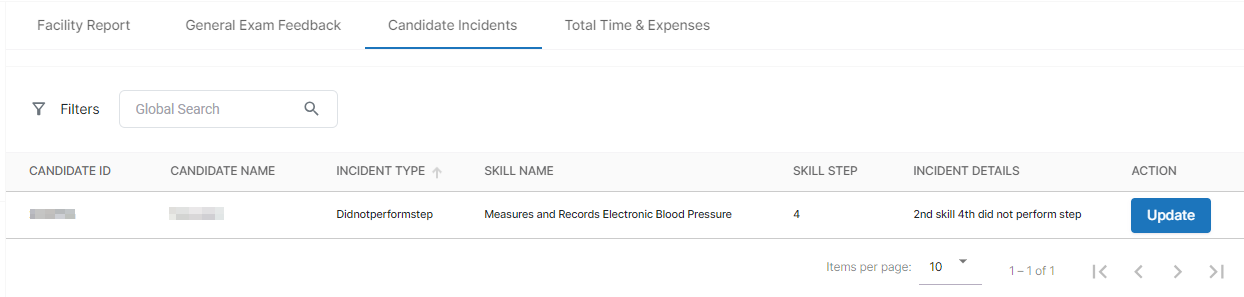
The Candidate Incidents section provides you with the list of incidents you have recorded involving the candidate during the event.
To edit the incident details, click Update (other information is non-editable).
Total Time & Expenses
The Total Time and Expenses section displays the actual payment for the event. You can view detailed information on your payment for the event. Check and confirm all the detailed information of your payment and select the check box.
This section is divided into four parts: time worked (work type breakdown information), round-trip mileage, other expenses over 100 miles, and actual total time and expenses.
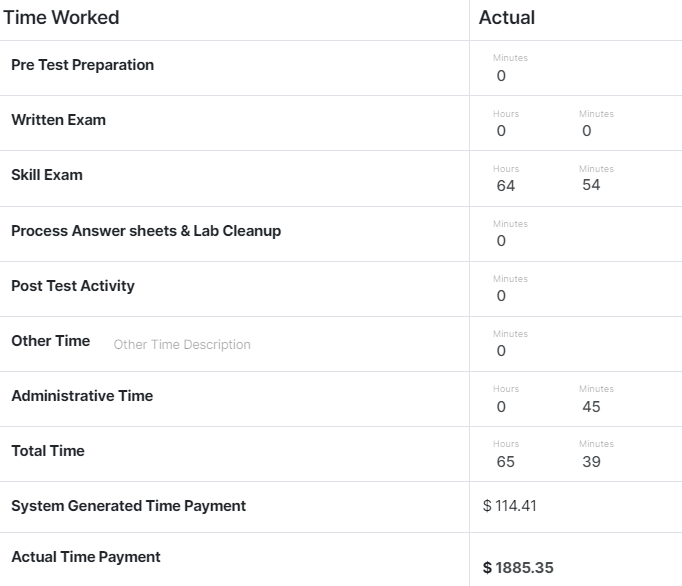
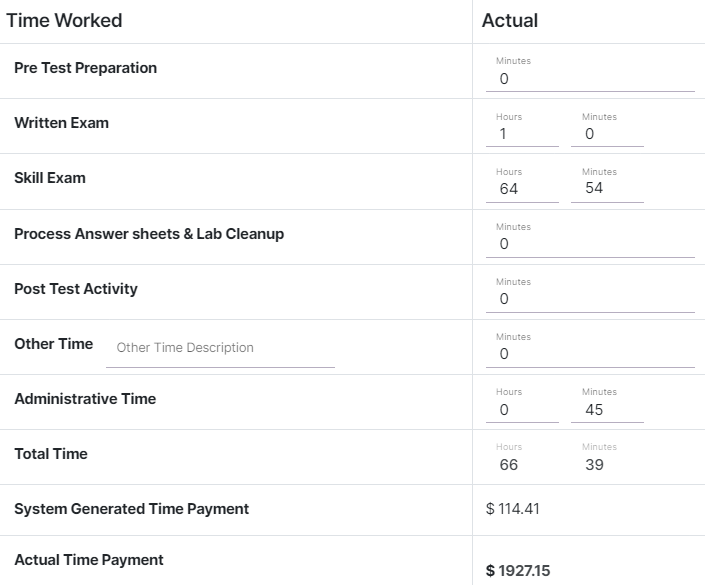
Time Worked (Event Time):
- The ‘Time worked’ section may include the following breakdown categories accounted in time duration: Pre-test preparation time, Written Exam (only for the written exam), Skill Exam (only for the skills exam), Process Answer sheets, Lab Cleanup time or Post-Test Activity, Other Time, and Administrative Time. These work hours are recorded in hours and minutes for verification.
- Pre-Test: We expect you to arrive at least 45 minutes early. This gives you time to set up your lab, review the candidate roster, and complete preliminary pairings. Simply record 45 minutes in this field if you arrive on time.
- Written or Skill Exam: This field is auto-populated based on the number of candidates who actually took the exam. For skill exams, the system calculates 30 minutes per candidate, and for written exams, it defaults to 2 hours if you’re facilitating. Don’t change this field; if something unusual happens, note it in another part of the invoice.
- Process Answer Sheets & Lab Cleanup: This is the time you spend scanning or shredding answer sheets and tidying the lab.
- Post-Test Activity: You may use this field to input the time taken to complete invoices and facility audits.
- Other Time: If something unexpected happens—like a power outage, missing supplies, candidate delays, or tech issues, extended facility audits—log it here. Be sure to explain the reason at the bottom of your invoice and notify the Program Events Team so the hours can be validated. Otherwise, your invoice may be returned for corrections.
- Administrative Time: This is automatically set at 15 minutes per candidate. It covers screenings, lab tours, and cleaning between candidates.
- The total minutes of the work and total amount are displayed based on the time worked calculation for the above-listed categories.
Roundtrip Mileage:
In the round-trip mileage section, you can view the mileage rate amount for the actual distance.
- The standard mileage rate per mile is calculated based on the total round-trip distance traveled by the NAE for the event.
- Mileage Rate: This section lists standard rates for various distances provided in miles.
- Estimated Distance and Estimated Mileage Rate: These estimations are based on pre-knowledge roundtrip distance details between the event's host and NAE’s addresses.
Note: Mileage is calculated based on the shortest route from your home to the testing center and back. Only adjust this if there’s a valid reason; anything over 15 miles requires pre-approval from management. Mileage reimbursement rates are displayed under the round-trip mileage section, along with the reimbursed amount for the event. If you don’t drive your personal vehicle, then you should not be billing mileage.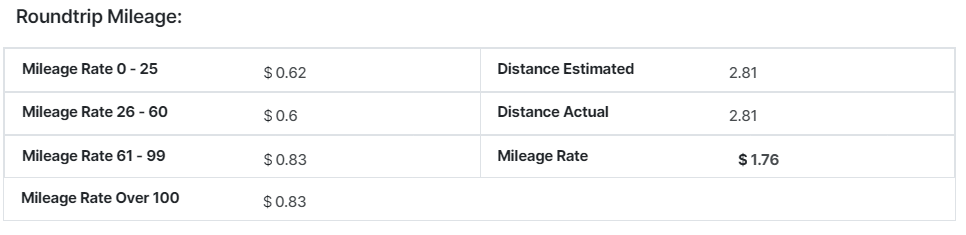
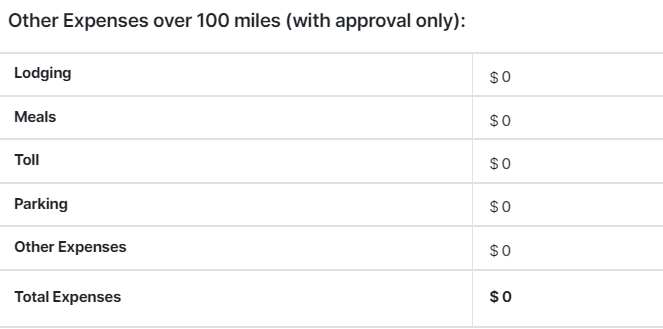
Other Expenses Over 100 Miles:
If you travel more than 100 miles for an event, you can claim additional expenses such as lodging, meals, tolls, parking, and other related costs.
After reviewing all tabs, select the checkbox and click Submit to complete the Event Results and Invoices. If you need to make any changes to your payment request, click Raise Concern.
Raise Concern
If you have any queries regarding the payment, raise concerns by clicking the Raise Concern button in the Total Time & Expenses tab. This will switch all tabs to edit mode, allowing you to update the data.
- In the Time Worked section, you can modify the actual hours and minutes according to the respective categories.
- In the Round-Trip Mileage section, add the actual distance in the Distance Actual field.
- In the Other Expenses Over 100 Miles section, you can enter the actual values in the respective category if you travel more than 100 miles for an event. The submitted additional expense request may include relevant claim documents. Click the Add File icon and upload the relevant document.

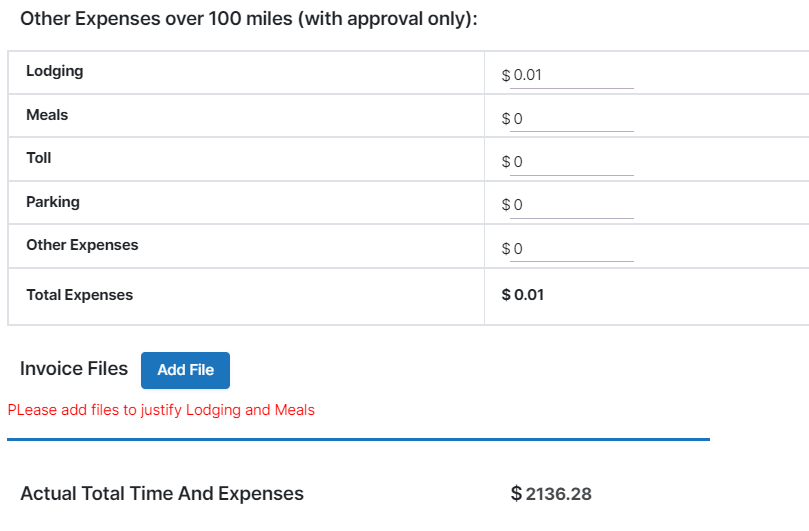
The Actual Total Time and Expenses section displays the calculated total of all added expenses.
After editing all the details, follow the steps below:
- Enter the details in the Comment Your Concern section.
- Select the check box.
- Click Submit to submit the invoice.
Invoice and Workflow Status
The following table describes the invoice and workflow status.
| Invoices Status | Workflow Status | Description |
| Not Submitted | Created | When the event is completed. |
| Accounting Review Approval | Submitted | When the Event Results and Invoice are sent for manual review. (If the submitted invoice is with Raise Concern modification.) |
| Management Review Approval | Submitted | When the Invoice is escalated for further manual review and verification. |
| Wait Support Doc | Rejected | When the Invoice is sent back for resubmission with the required additional supporting documents. |
| Waiting Export | Approved | When the Invoice is approved and queued for the scheduled payment processing. |
| Waiting Export | Rejected | When the Invoice is rejected after manual review. (If the submitted invoice is with Raise Concern modification and it is rejected.) |
Manual Invoices
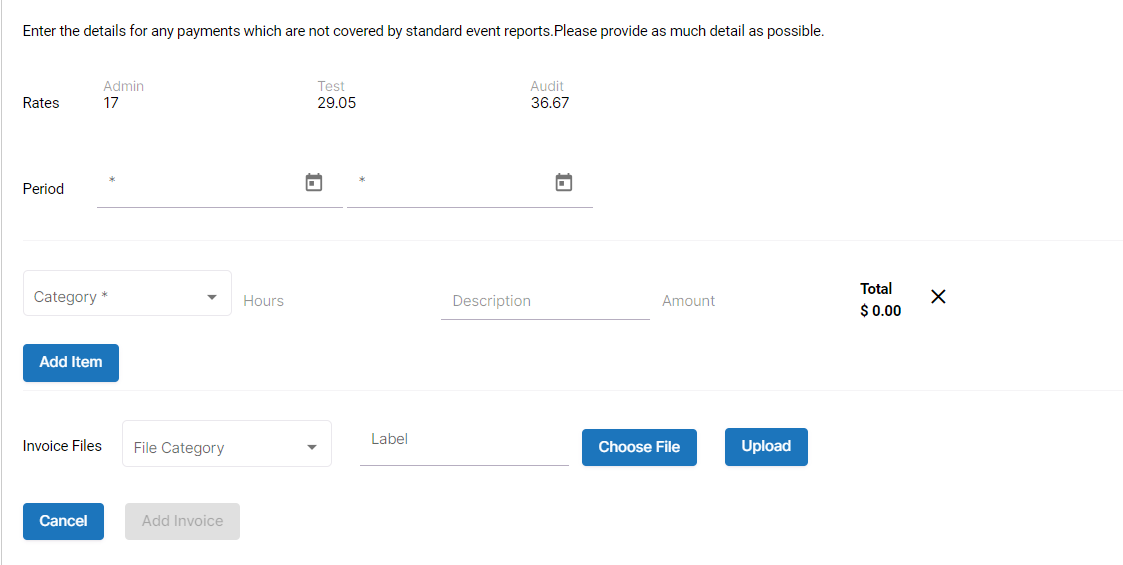
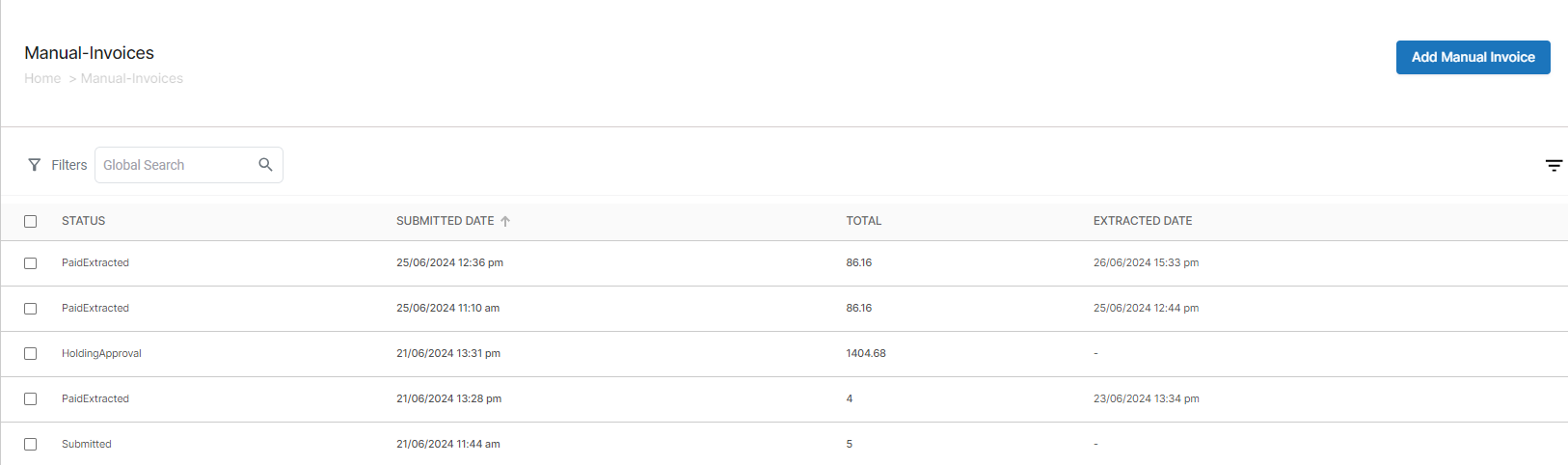
The Manual Invoices section allows you to add and view your manual invoices. You can reimburse bills that are not included in the standard payments offered at the event. After uploading the related documents, the Credentia Operations will verify and process your bills for payment.
The manual invoices are displayed in tabular format, where you can view the Status, Submitted Date, Total, and Extracted Date.
| Field or Icon | Description |
| Status | Provides you with the status of your invoices
|
| Submitted Date | Displays the date on which the invoices are submitted. |
| Total | Displays the total amount mentioned in invoices. |
| Extracted Date | Displays the approval date of your invoices. |
Adding a Manual Invoice
To add a Manual Invoice, follow these steps:
- Click Add Manual Invoice on the Manual Invoices page.
- You can view the standard rates for the Admin, Test, and Audit.
- In the Period field, click the Calendar
icon to select the start and end date.
- Click Add Item to add multiple items.
Note: You can add multiple items.
- Select Category from the dropdown list.
- Flat Pay
- Pre-Test Prep Cancelled Event
- Facility Audit
- Expenses Cancelled Attended Event
- Referral Bonus
- Trivia Winner Bonus
- Grievance
- PO Box Expense
- Admin Time
- Expenses Unscheduled Event
- Hourly
- Expenses Unscheduled Event
- E-Learning
- Onboarding Host
- Expenses Onboarding
- Cell Phone Stiped
- Misc Bonus
- Fill in the mandatory fields include description, and Hours (the Amount added automatically based on the category and working hours).
- In the Invoice Files field, select File Category from the dropdown.
- Enter the Label of the file you want to upload.
- Click Choose File, select the File from your local device and click Open.
- After you select the file, click Upload to upload your file.
Note: You can add multiple files if necessary.
- Once you have updated all the necessary information, click Add Invoice to submit. Or click Cancel to exit the window without saving.