Login
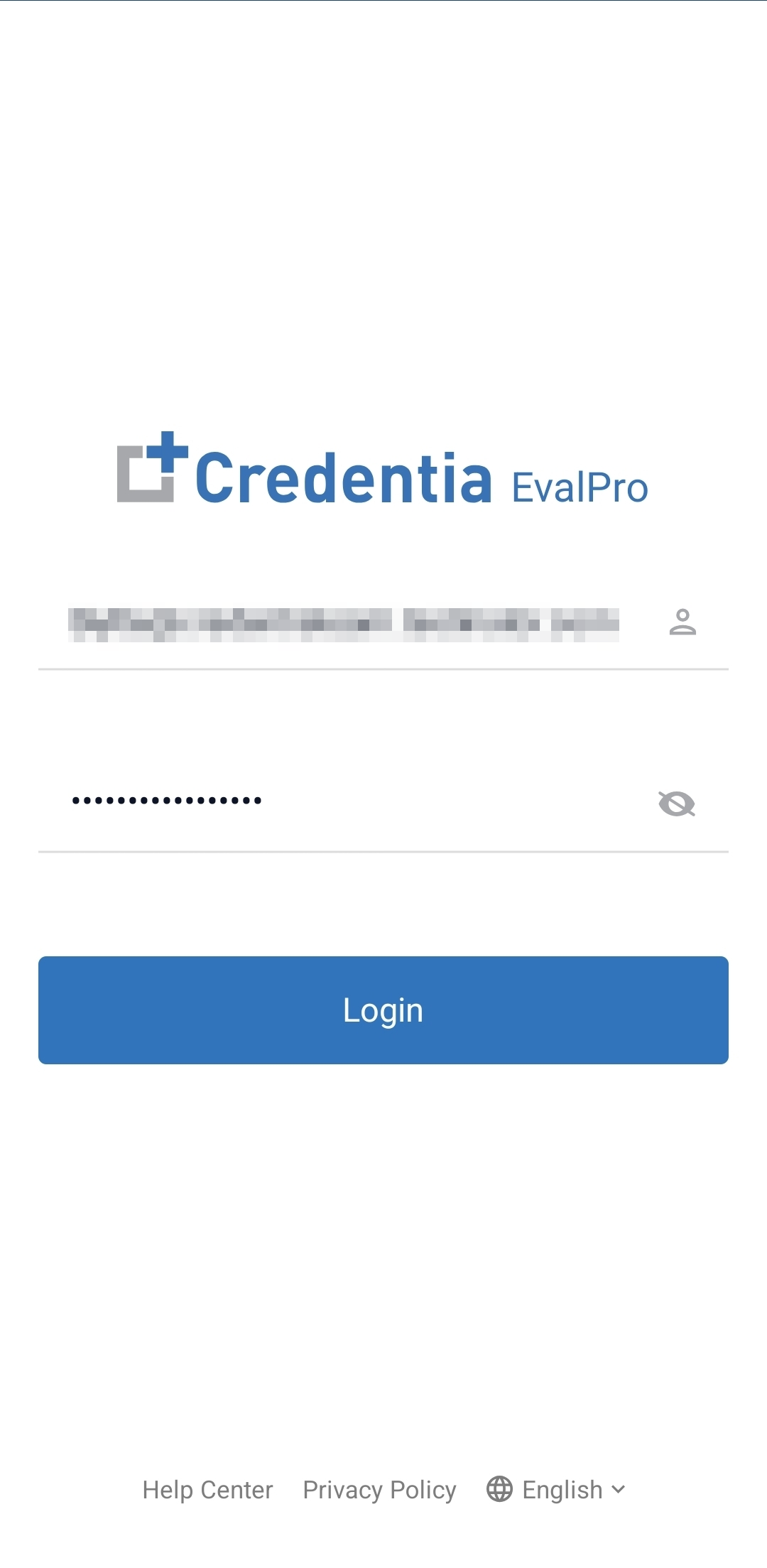
- A login screen will appear. Provide your registered Credentia NAE console login credentials.
- Enter the registered Email ID associated with the Credentia NAE console.
- Enter the Password associated with the Credentia NAE console.
- Tap the Login button.
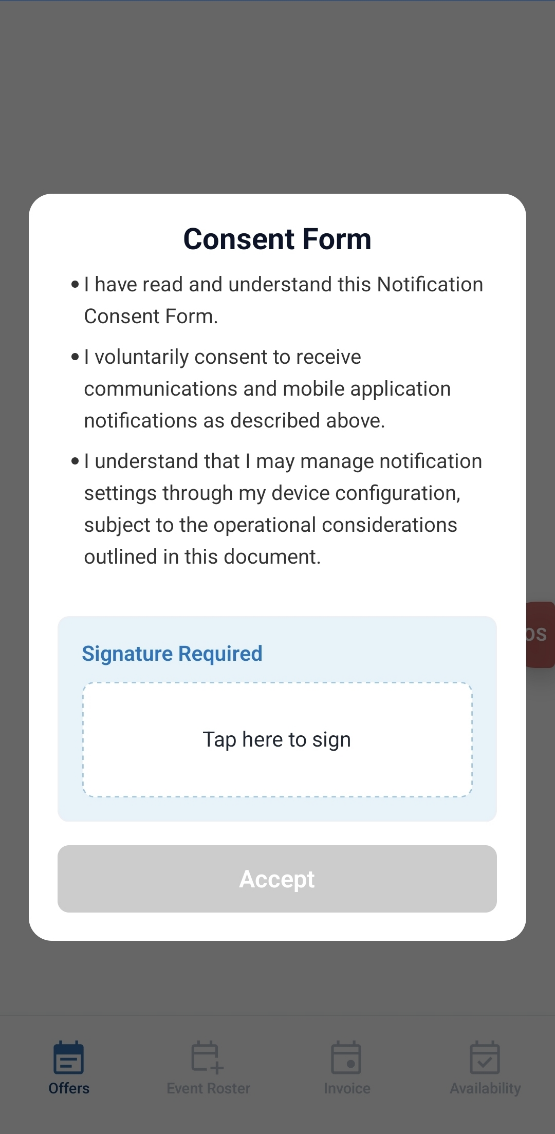
- Next, scroll to read the Consent Form and sign the form digitally at the bottom of the page before proceeding.
- Scroll to the bottom of the page, tap the Signature Required option to provide your signature in the signature required section.
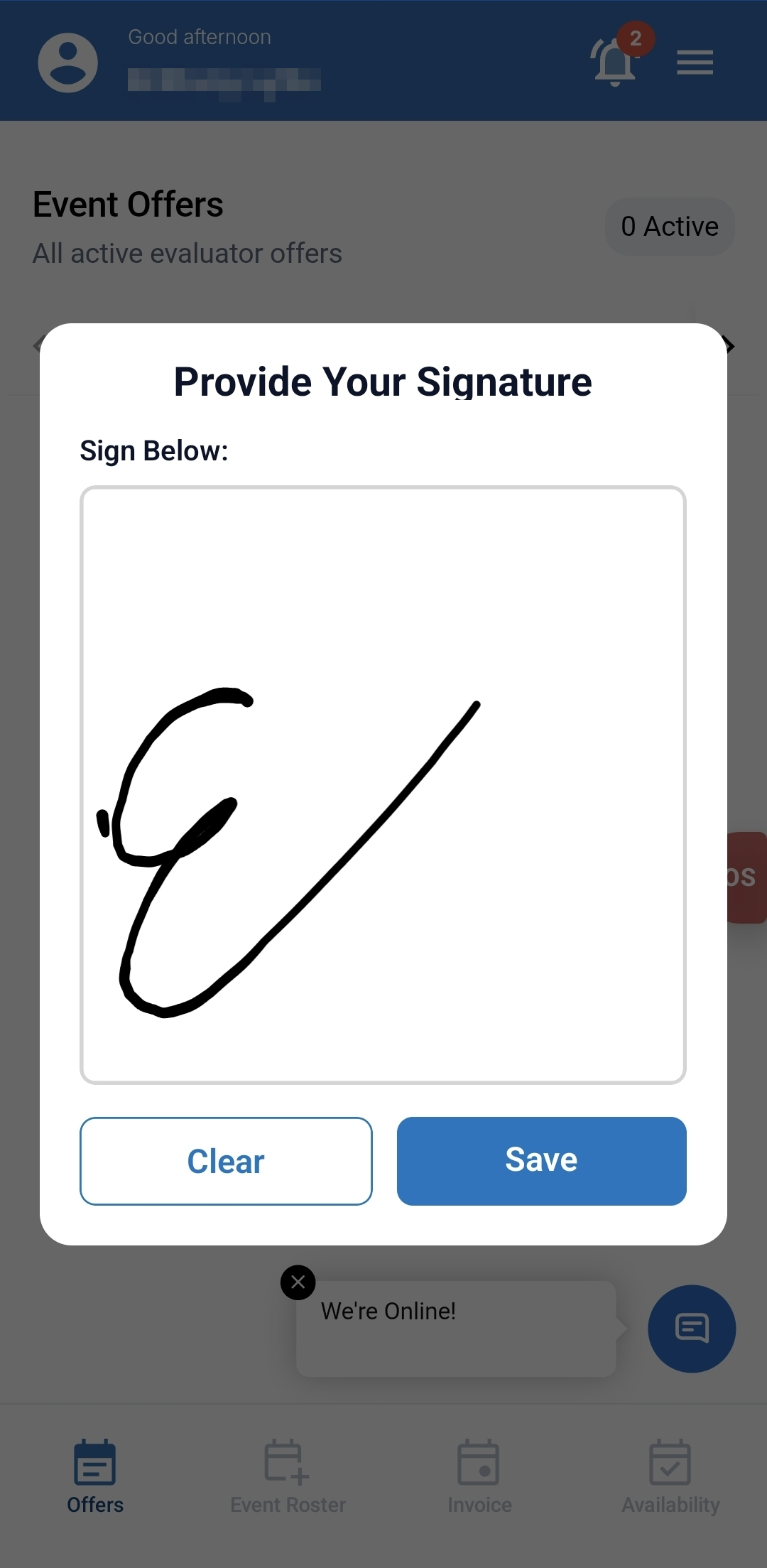
- Once you tap on the signature section, a pop-up will appear for you to sign. Sign digitally in the Provide Your Signature box, then tap Save to continue. Use the Clear option to erase the signature and sign again if needed.
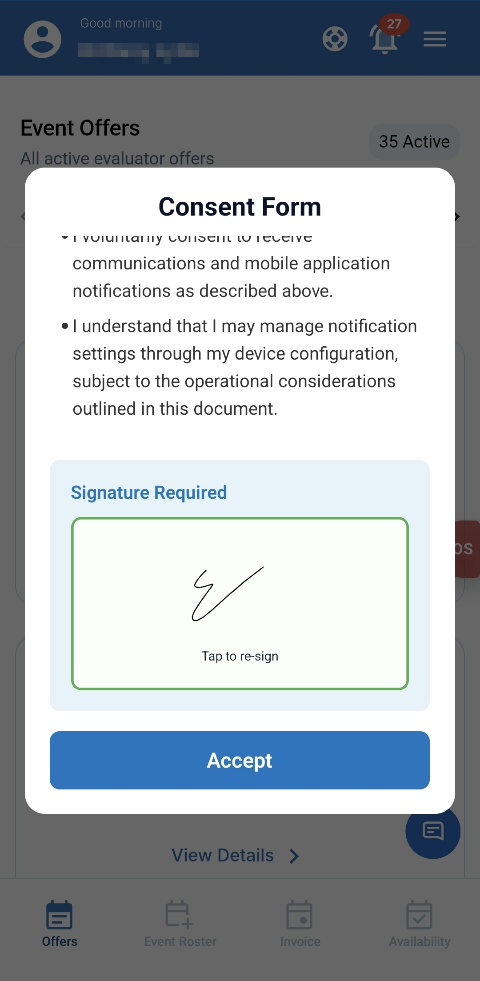
- Scroll to the bottom of the page, tap the Signature Required option to provide your signature in the signature required section.
- After signing, tap Accept to proceed.
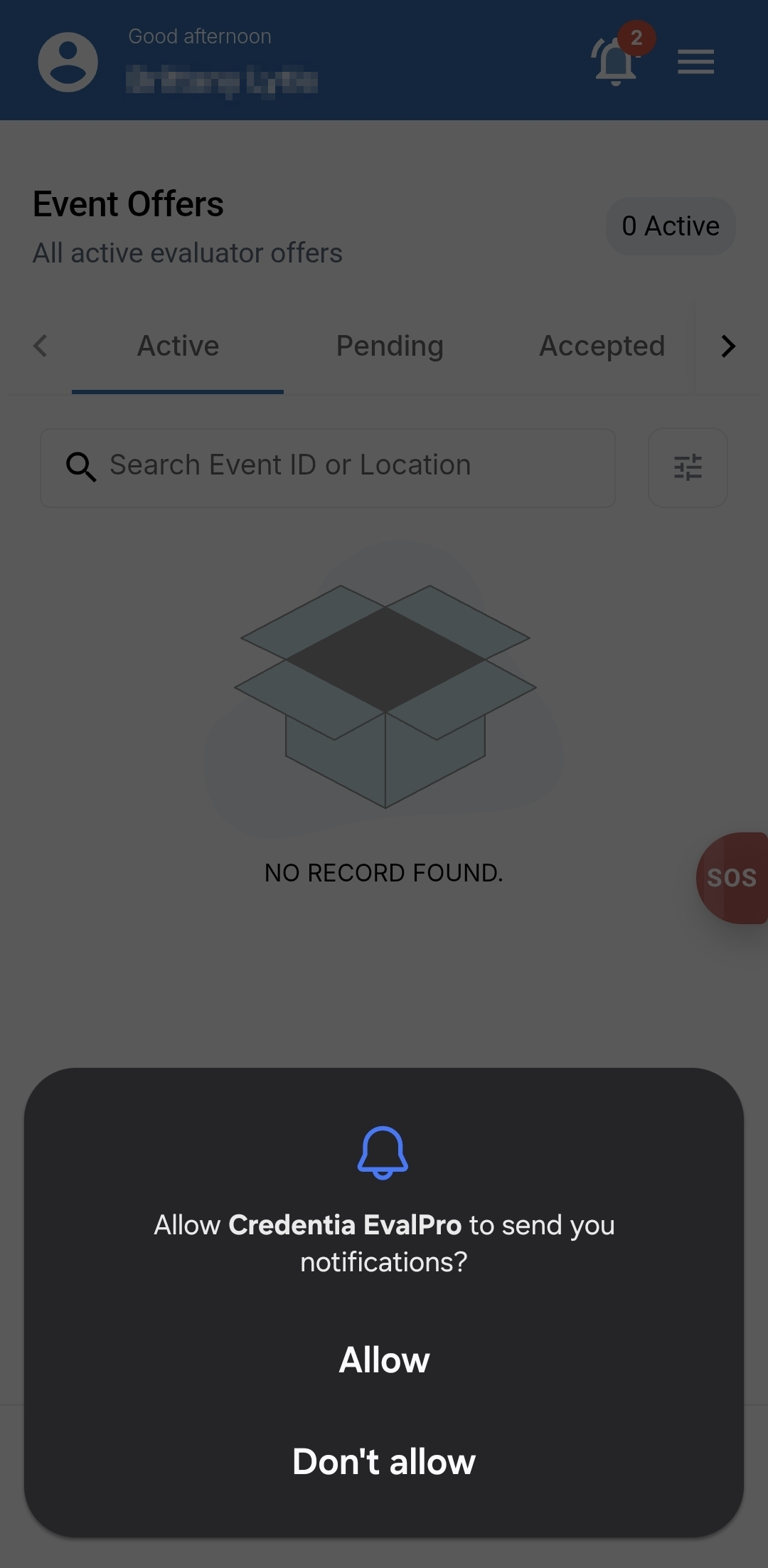
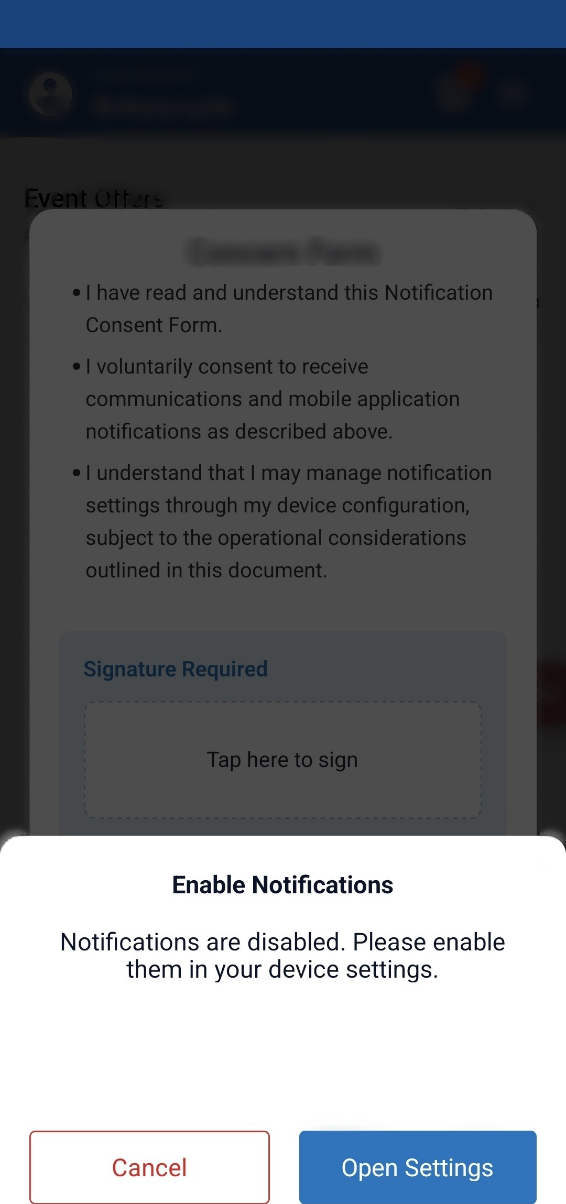
- If you receive a pop-up notification, enable the app notification so you can get the notification as soon as the event is offered.
- Select Allow (Allowing notification) of the Credentia Evalpro.
- You can also go to your phone’s app settings, > select Credentia EvalPro app permissions, > select notifications > enable Allow notifications.
- Select Allow (Allowing notification) of the Credentia Evalpro.
- The Credentia EvalPro App provides all the features and options that you have on the Credentia Platform (web portal). To learn how to navigate the app's options, refer to the NAE console user guide.